
Diagnosis and prices
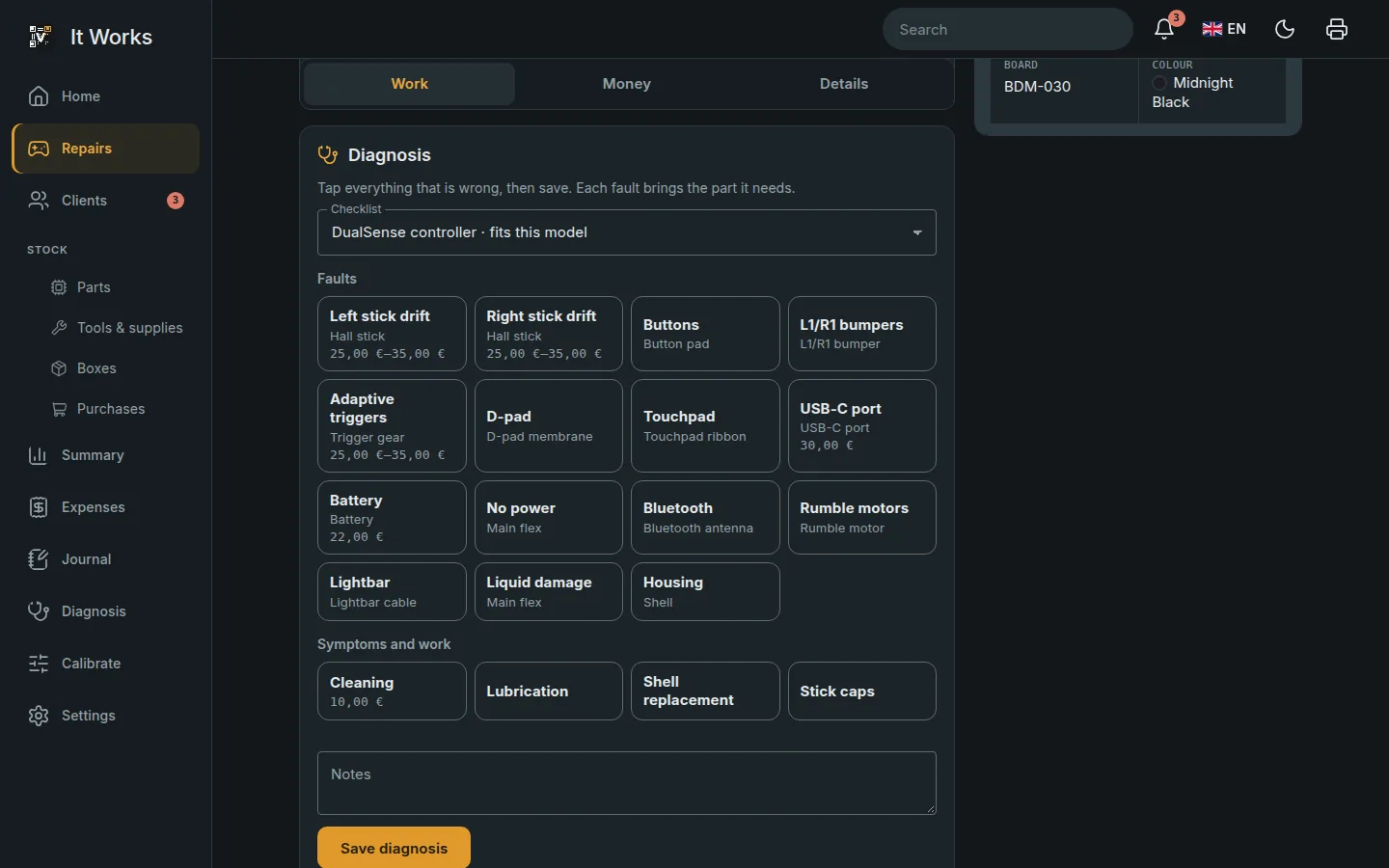
A diagnosis sheet belongs to a device family and lists its usual faults and work items, each with the part it needs and a price. A device has one diagnosis: the items you ticked, snapshotted at that moment, so editing the sheet later never rewrites a diagnosis already given.
Sheets and how one is picked
Verkly ships sheets for the DualShock 4, DualSense, PlayStation 5 and 4, Xbox Series and One, Nintendo Switch and a part-less General repair; each carries the category, maker and model it is for. On a device card the sheet that fits best comes first ("fits this model", "fits this maker", "fits this kind of device"), then General repair, then Sheets for other devices; a model matches by prefix, so a PlayStation 5 sheet covers the Slim and Pro too. A device without a catalog identity gets the old guess by name.
Ticking a diagnosis
The Work tab of the card leads with What is wrong (the fault in the client's words, its photos and videos) and then the Diagnosis: the sheet in a select, its faults and work as big tiles you tap, several at once, a note, Save. On a client's card the estimate adds up live as you tick (each item's price or range), and the Client repair block offers the estimate's ends as Use €x buttons that set the repair price. An item's price can be changed on that device without touching the sheet. The receipt prints the ticked items beside their prices.
Until someone types a price, a client's repair price follows the estimate: each diagnosis change writes the estimate's upper end into it (none while nothing is priced), and the client's page asks again for the new figure. A price you type, or one picked with Use €x, wins from then on; Follow the estimate again hands it back. A handed-back repair keeps its price, and prices typed before 1.103.0 stay as they were.
Adding faults later
More turns up during the repair? Under a saved diagnosis, open Add more faults, tap the faults of the same sheet that are still missing and press Add to the diagnosis. The faults already there, and the parts ordered or reserved for them, stay as they are. On a client's repair the estimate follows, and so does the price unless you typed it yourself. A fault of another sheet needs a new diagnosis, and a sold device takes no more.
A part's way to the device
Once saved, each fault that needs a part is a card with a badge: to buy → ordered → arrived (reserved) → used.
- To buy feeds the shopping list on the Diagnosis tab and Home.
- Mark ordered asks which purchase line it comes with (the parts lines of orders on the way, the ones named like the part first), or none. When that purchase is marked received, the pieces are reserved from the line's lot, the item turns arrived and you get a notification: "A part for a repair is here". Linking a line already received arrives at once.
- It arrived by hand asks which lot; the pieces are reserved for this device, so nobody else spends them (reservations). Not here after all goes back.
- When a received lot named like the part fits the device and has the pieces, the card offers Use 1 now: the part is booked onto the device in one tap, and a reserved one offers Use it now. Taking the piece consumes the reservation.
The Diagnosis tab
Behind More on a phone, in the sidebar on a computer: tiles (diagnosed devices, to buy, ordered), then To buy rows per part name with the devices waiting as chips and needed / free / buy, where Mark ordered turns every open item of that name ordered with one purchase line; Ordered rows with their device and purchase; the sheets as cards with their scope, lines, how many are priced and how many devices use them, each with Edit sheet.
Repair prices: the sheet editor
Repair prices (from the Diagnosis tab) is where you edit the sheets, line by line: the symptom or work, the part it needs (blank = work only), how many pieces, the price from and to (a single price when both ends are equal), ×, Add a line, one Save. On the right the sheet's devices (category, maker, model from the catalog), its name, delete, New sheet. Prices are in your home currency and only ever snapshotted onto new diagnoses; past estimates stay as given. A sheet can't be deleted while a device is diagnosed with it.
Ready lists
Settings → Catalog and categories → ready lists: phones, tablets, laptops, retro computers and audio come as catalog branches with a diagnosis sheet each; add one, or All of them. A sheet of that name you already made is never overwritten. The New device form shows the lists not added yet as chips.
Share with Verkly
On the same page, Share with Verkly previews the devices and sheets you added yourself, and items you added to a shipped sheet, and sends them to us so the next release has them for every workshop. Only what the preview lists goes: names, items and parts, never prices, devices or clients. It is a button you press, nothing is sent on its own.