
Talking to clients
A client repair is half bench work and half telling the client what is going on. Verkly does the telling without SMS and without paying anyone: a page of their own, a message you send from your phone, news in Telegram, a signature on the spot, and a form where new clients ask for a repair. The repair itself (intake, prices, payments, the papers) is on Client repairs.
The client's status page
Every client repair has a secret link: the receipt carries it as a QR code, Email it to … on the card sends it, and WhatsApp below writes it into a message. The page needs no sign-in and shows your workshop, the device, the status as steps (Received → Diagnosis → In repair → Ready to collect → Collected; waiting for parts shows as "Waiting for parts", a device on its way as "On its way to us", one in the queue as "In the queue"), your note for the client under them, the price or the estimate, what is paid, the warranty, the journal entries you marked Show to the client with their photos, and the fault videos you ticked. Never your own notes, the access code or other clients. Making a new link on the card kills the old one.
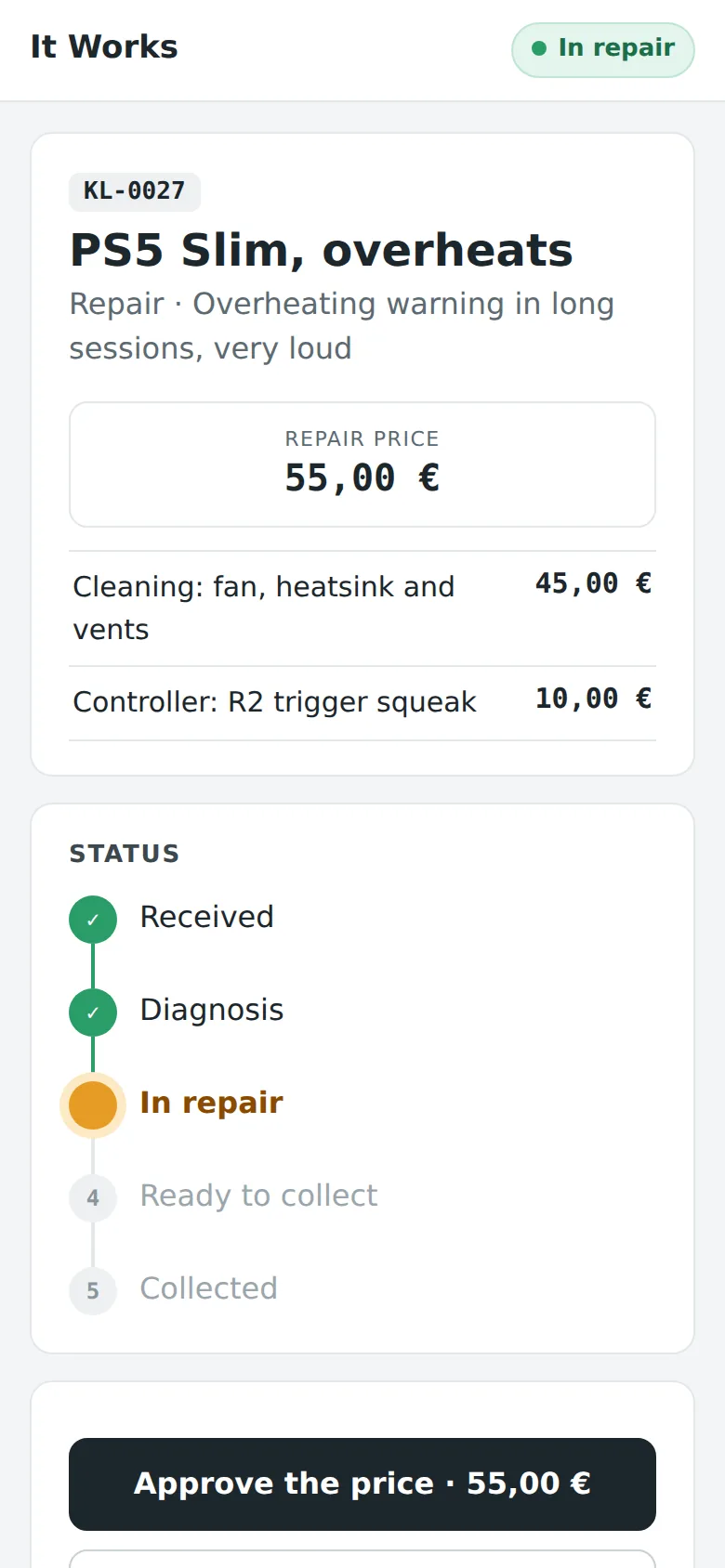
The page reads top to bottom: the device and its price, the status steps with your note, Approve the price and Decline (and the form to write to you), the updates, then your contact. The pill at the top names the step the repair is at, Approve the price is a full-width button, and the contact is two buttons, Call and Email.
The client answers from the page
While a price or an estimate shows and the repair is not handed back, the page has Approve the price and Decline, and a Write to the workshop form (up to 500 characters). Every answer lands in the device's repair journal (the client sees it on their page too) and you get a notification: "… approved the price for KL-0007". The device card then says "Price approved on …" or "Price declined on …" under the repair price, and Repairs marks it beside the status. Change the price and the client is asked again. The words of the block are yours to rewrite on Workshop and documents → Client's page.
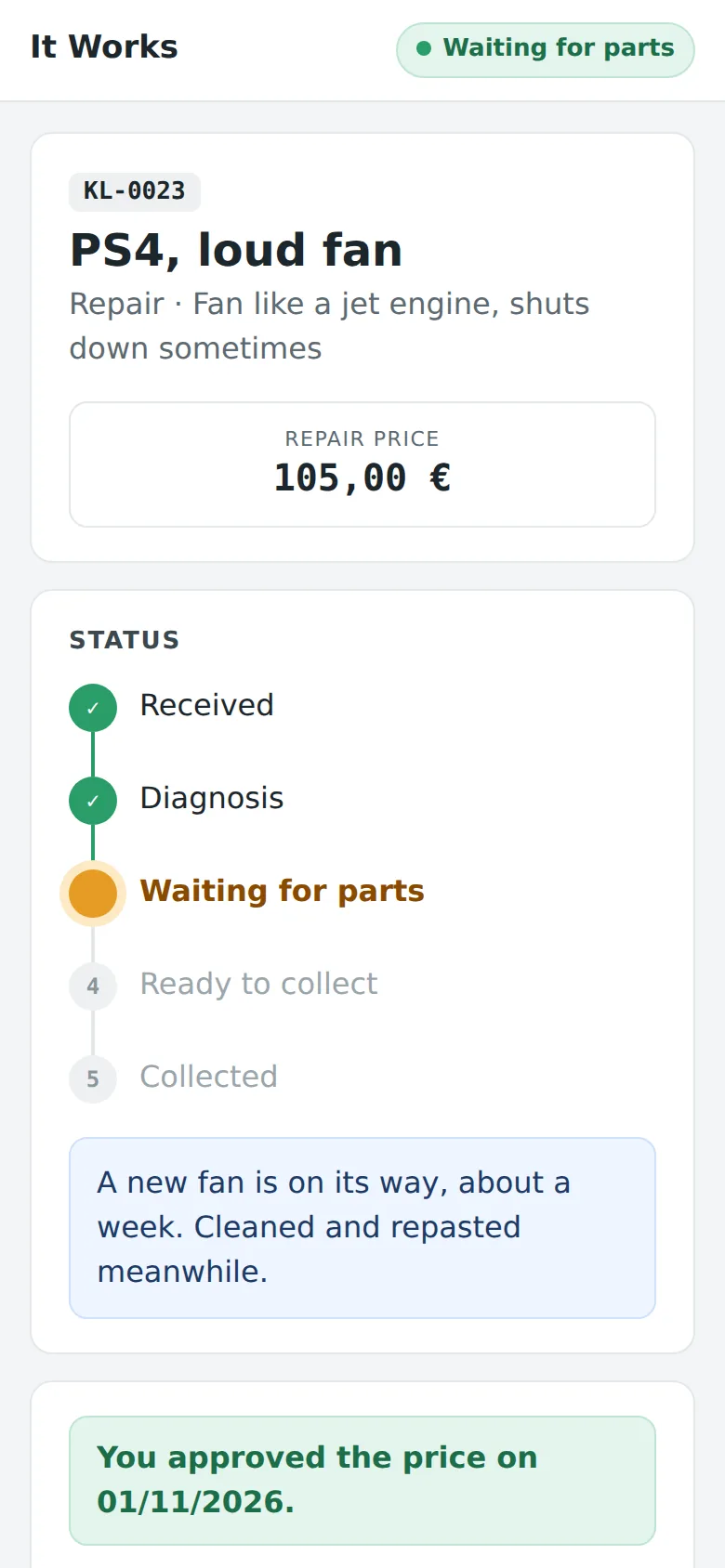
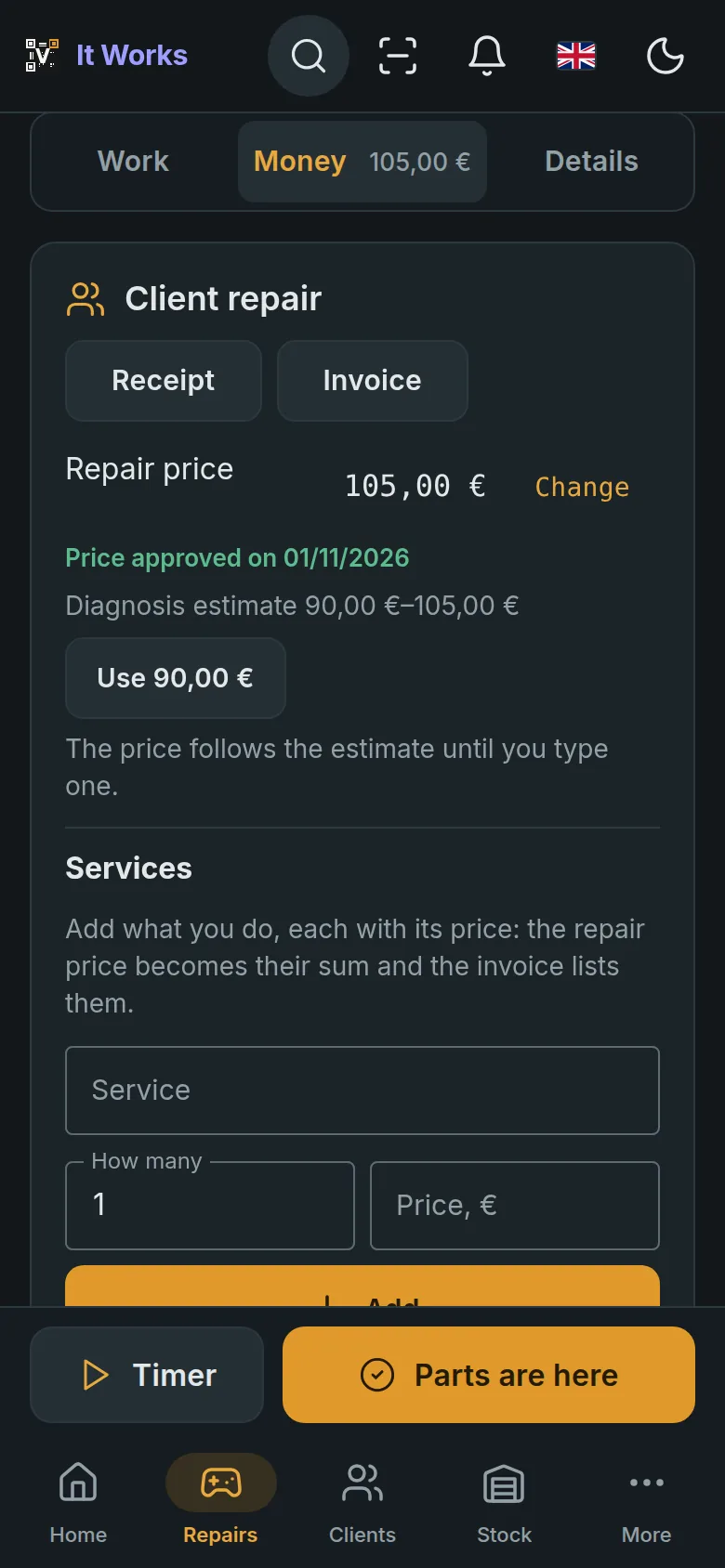
What a client writes on their page can't be edited by you. Press Answer under it: your reply appears under their message on the page, and the client gets it by email or Telegram like every note shown to them. The bell in the header counts new messages and price answers; tapping one opens the repair at that message. The Clients tab shows how many each client has. On the page, Approve the price shows the amount, Decline can carry a reason, and after an answer the page says how to change it.
WhatsApp and any messenger
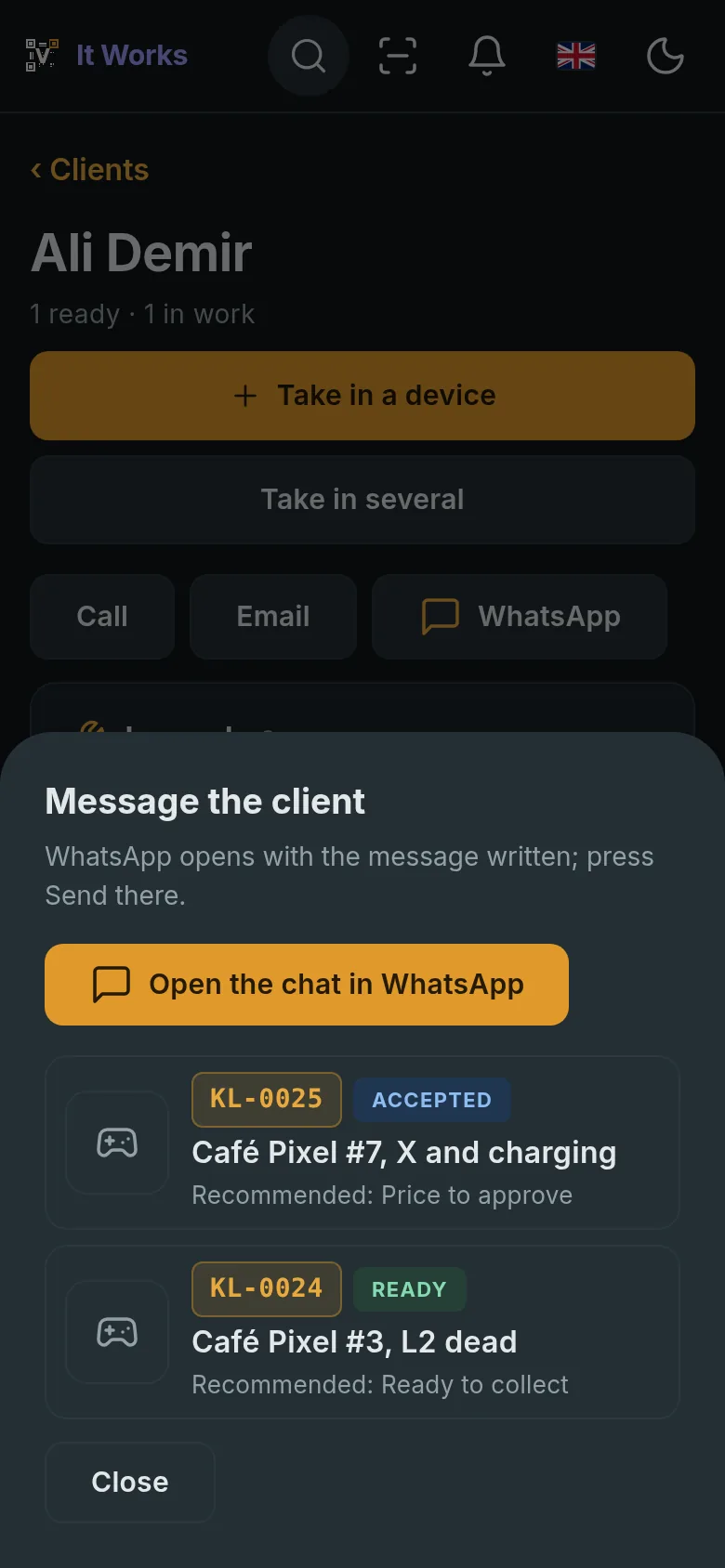
A client's card has WhatsApp. A client with one device goes straight to that device's messages. With several devices it opens Message the client: one button, Open the chat in WhatsApp (the chat opens with no text), and a row for each device with its photo, code, status and the message worth sending (Recommended: Ready to collect). Up to ten devices are listed; past that it says how many are not and you open their cards. Tap a device to see its messages; the arrow goes back.
Each message is one row: its name, a Recommended mark on the best one, the first words, WhatsApp and Copy. Tap the row to read the whole text. Only messages that fit are offered: Status link always; Status update for a status that tells the client (Settings → Workshop & documents → Tell the client); Ready to collect only while the device is ready; Reminder to collect only from the second day it has waited; Price to approve only while the client can still answer it. The recommended one is Ready to collect while it is ready (the reminder once the device has waited as long as Not collected asks), else Price to approve, else Status update, else Status link.
WhatsApp on a message opens WhatsApp on your phone or computer with the text written; press Send there. Copy puts the same text on the clipboard for Signal, Telegram or anything else. Nothing goes through Verkly's servers and nothing is paid. A local number (starting with 0) gets your country code in front: set Country code beside your phone on Workshop & documents (49 for Germany). Without a phone number only Copy is offered, with the reason. The texts are on the Messages tab of the paper texts.
Updates in Telegram
With your own Telegram bot connected (Notifications and Telegram), the status page
offers Get updates in Telegram. The client opens your bot, presses Start, and from then on every status change and every
journal entry you show them arrives there. The card says "Telegram: N linked" with Unlink; the client stops it with
/stop. Switch the offer off on Workshop & documents (Offer clients news in Telegram from your bot).
Signatures at intake and hand-back
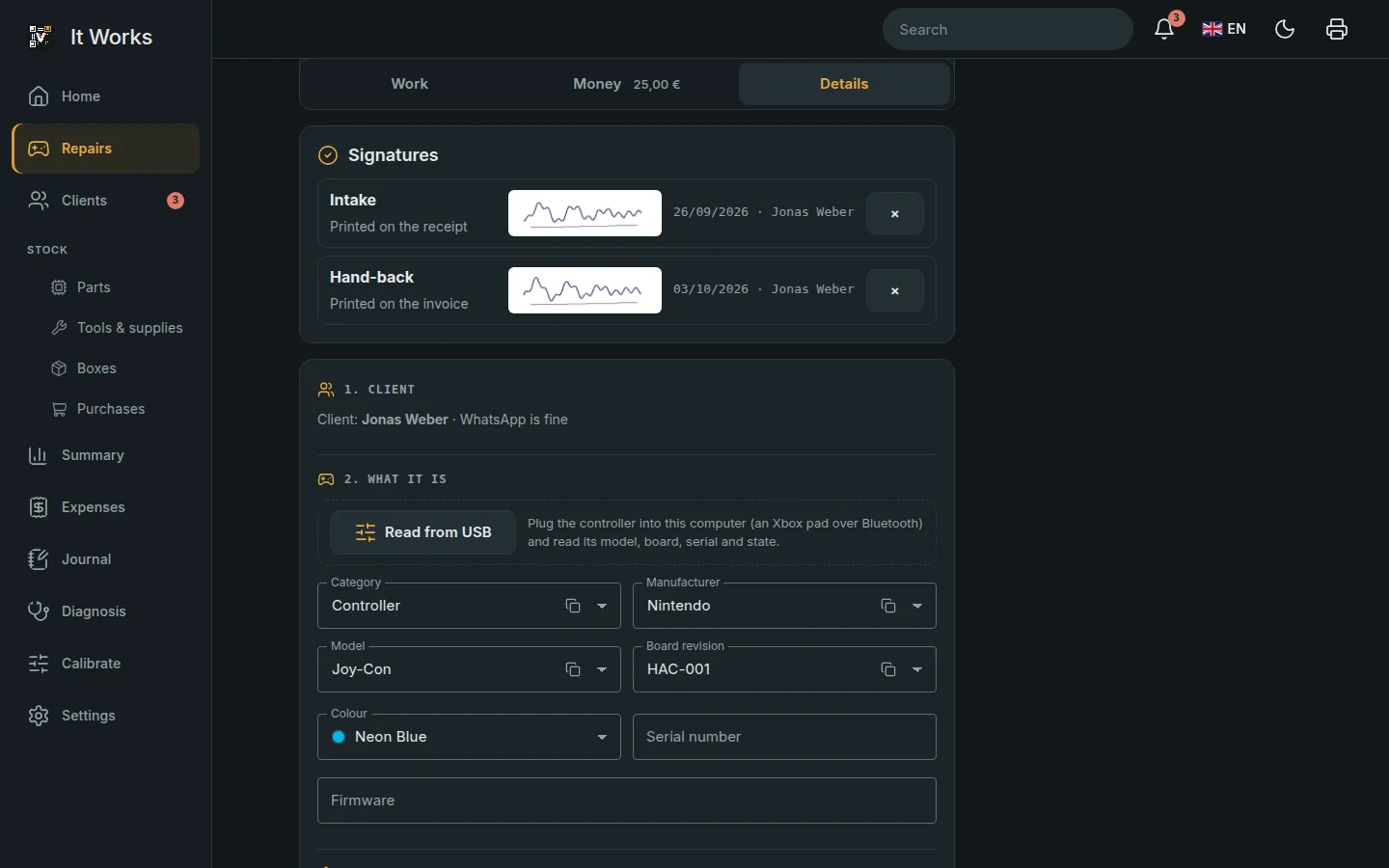
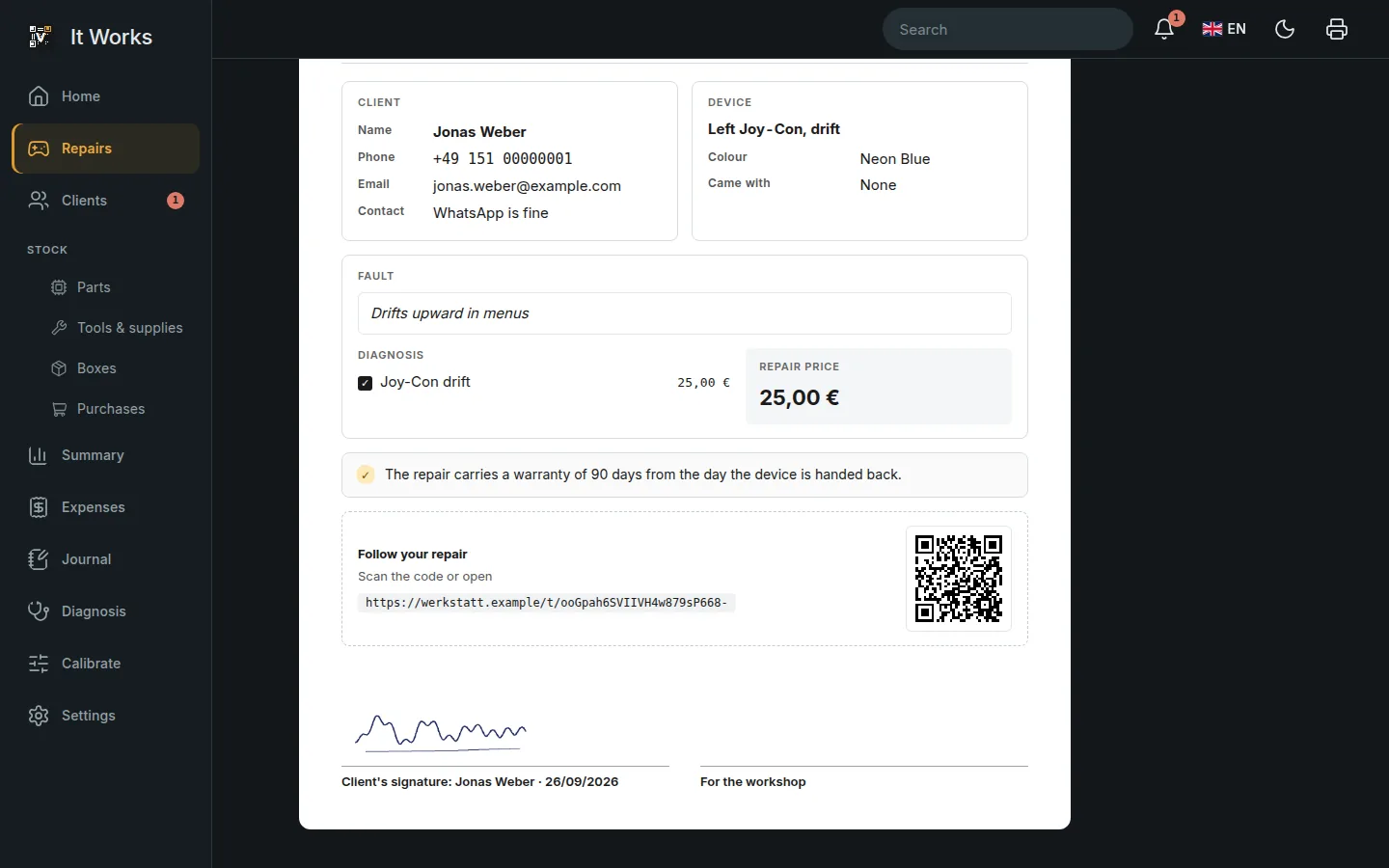
The client signs on your phone when they hand a device in and again when they take it back: Details tab of a client's device → Signatures, Sign on the Intake or the Hand-back row. A finger or a pen on the screen, Clear, the name of the person signing (the client's to begin with), Save. The intake signature prints on the receipt with the name and the day, the hand-back one on the invoice. While the receipt is unsigned it offers Sign on the phone (not printed). A second signature replaces the first; the old picture goes to the archive. A technician may take one too.
Repair requests through your own link
New clients can ask for a repair before they come: their name, phone and/or email, the device (a kind from your catalog, or Something else) and its model, what is wrong, up to three photos, whether they bring it in or send it by post, and a consent tick. Switch it on under Workshop & documents → Repair requests (Take repair requests through a link), then share the link or print its QR code; Make a new link stops the old one and its QR. The form speaks your papers' language.
With Show the price list on the form on (it is by default), the form also lists the priced lines of your diagnosis sheets for the device the client picks. The client ticks what needs doing and sees the Estimate add up, and the thanks page repeats it. Ticks are enough, with no words needed. Accepting such a request makes the device's diagnosis from the ticked lines, so its repair price follows the estimate until you type one (see Diagnosis).
A new request shows on Home and under Clients → Repair requests, with a notification. Each request is a card with its number (RQ-…), the contacts, the device, the fault and the photos, behind the chips New, Accepted, Declined and Spam:
- Accept finds the client by email or phone (or makes a new one) and makes the device card in accepted, with the fault, a note about the request and the photos as fault photos.
- Decline asks for a note and, when the client gave an email and email is set up, mails it to them.
- Spam puts it aside; Delete removes a decided one. Delete asks first; after Spam an Undo shows for a few seconds and brings the request back to New.
With Email the client that the request arrived on, the client gets a confirmation. Bots are kept out by a hidden field, a time check and a limit per address and per hour. The words of the form and its emails are on the Repair requests tab of the paper texts.
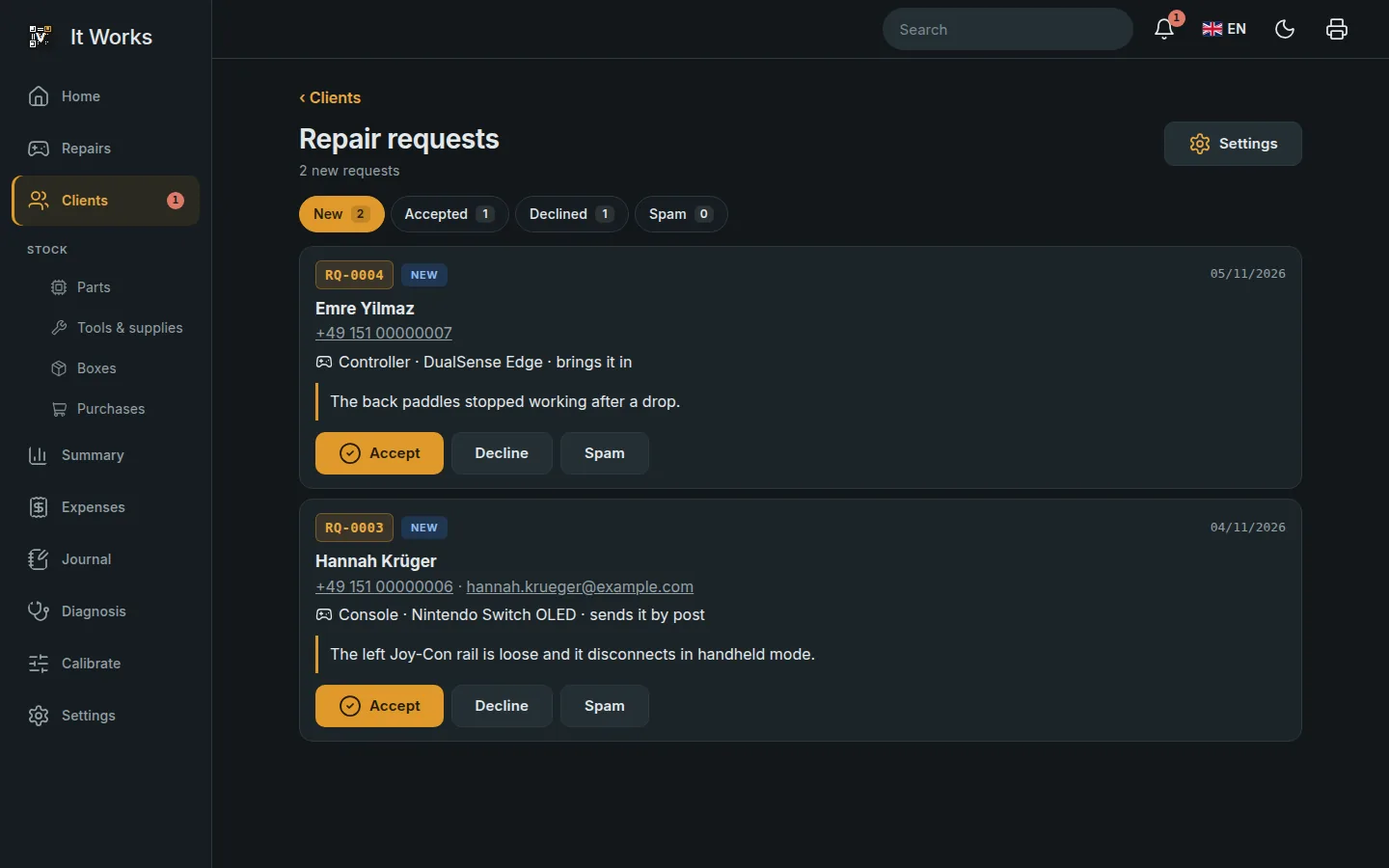
The number on Clients in the menu says what it is when you point at it: new repair requests and messages from clients. The Clients page shows new repair requests at the top, and Repair requests carries their count. The thank-you page the client sees has Copy the number, says what happens next and offers Call and Email; the price list on the form folds by model and opens the one the client types.
The request form first asks for the device. Until the client picks one it says "Pick your device above to see the usual repairs and prices", and the estimate stays hidden until something is ticked. A request that comes by post becomes a card in The client will send it, not sent yet; one the client brings in becomes Accepted.
Tell the client on every status
Settings → Workshop & documents → Tell the client lists the client statuses (On the way, In the queue, Accepted, Diagnosing, Awaiting parts, In repair, Ready, Returned) with an Email and a Telegram switch each, saved as you tick. Out of the box only Ready is emailed and every status goes to Telegram. Ready sends its own "ready to collect" email; any other ticked status sends the "New status" email, with the status and your note for the client. Its text is on the Emails tab of the texts; the Telegram news and WhatsApp's Status update carry the note too.
After you change a status, the message says who heard of it: Client emailed and Client told in Telegram. With neither, nobody was told.
A status change does not reach the client at once. When it would email or message them, Verkly waits 30 seconds. Meanwhile the card says "The client will be told "In repair" at 14:32." with Don't send, and the message that follows the change has Undo; either one stops it (the status itself stays). A later change replaces an earlier one that has not gone out, so the client hears only the last. Going back to the status the client was told last, within the hour, sends nothing. If the 30 seconds have passed, Undo says it is too late: the client has been told already.
Emails
The link email, "ready to collect" and the request emails go out the way set on Email, in the language of your papers, with your workshop's email as Reply-To.
The "Not collected" email (subject and text) is sent by Remind the client. Its texts have days it has been ready to put in. The WhatsApp text is Not collected yet and the Telegram one Telegram: not collected yet.