
Selling and marketplaces
A device of your own goes up for sale, is sold and leaves the books with its margin. This page is about that last stretch: where it is listed, how the sale gets in (by hand, from an eBay report or straight from eBay) and which devices lie too long. How the margin is worked out: How money is counted.
The sale forms
The sale forms pick the platform with chips; the list waits behind Other…. The flat overhead is said as "a flat amount for flux, solder and tools; it comes off the margin", and a tool's sale shows live what comes back (price, fee, shipping, packaging).
Listings on several marketplaces
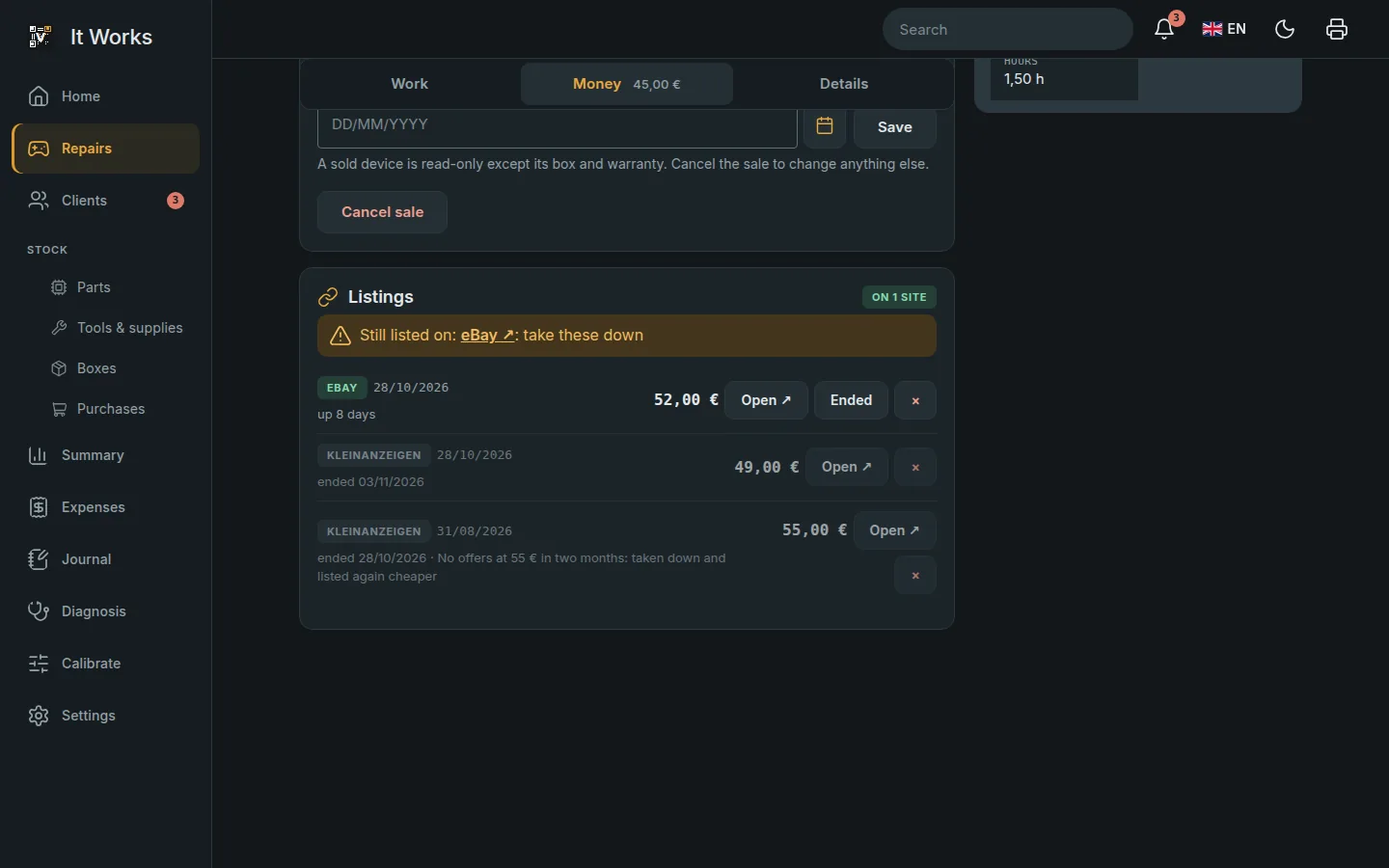
One controller can be on eBay, Kleinanzeigen and a forum at the same time. The Money tab of your own device has a Listings block for that: Add a listing folds open the platform (your sales platforms from Settings → Money and rules, or Other…), the Link to the listing, the asking price (it starts at the expected sale price), the day and a note. Each listing then shows as a row: the platform, since when and how many days it is up, the asking price, Open, Ended and Remove.
- The first listing marks the device Listed (from bought up to ready; a donor or a device in transit keeps its status).
- Recording the sale ends the listing on the platform it sold on. The others stay up, and the sold card says in amber Still listed on: …: take these down, with Ended on each row.
- The sale form offers the active listings as chips: a tap fills the platform and the price.
- On Repairs a device listed on more than one site says "on N sites"; the search finds a device by its listing's link.
The asking price is only a note for you: no rule of the books reads it, and a technician can't set it. Listings are not in any CSV.
Recording a sale by hand
The next-step button Record the sale opens the Money tab with the sale form, the price first. Pick the platform from the chips (its percent fee comes from Settings → Money and rules unless you type the fee), add the shipping to the buyer, the packaging and the day; the form shows the margin the price would leave while you type. Cancel sale undoes it, and nothing else needs undoing. Cancel sale asks before it acts.
eBay reports
Selling on eBay? You don't have to type the fees. In eBay's Seller Hub open Payments → Reports, download the Transaction report (or the Orders report) as CSV, then in Verkly open Settings → Import and export → eBay report (a file), pick the file and press Preview. Reports from eBay.com and eBay.de are read as they come, preamble lines and German headers included.
- Each order becomes a sale with eBay's real fee and the shipping label you bought as your shipping.
- A device code (
RS-0004) in the listing's custom label (SKU) finds the device by itself, and so does the eBay item number of a listing you added on the device. For the other orders pick the device in the preview, or let them be skipped. - Importing the same report again only corrects fees and shipping; a sale is never booked twice. An order whose device you already sold by hand gets the real fee and the order number.
- Refunds are shown, never applied: if the item came back, cancel the sale by hand.
- A report in another currency than your home currency is refused with its name.
Nothing is written until you apply the preview. Owners only.
The eBay connector
In Settings → Connections it is the eBay card, your eBay account; the file you download is the eBay report (a file) above. Instead of downloading reports, Verkly can read your orders and their fees from eBay itself, every hour, with your own eBay developer keys. It needs Verkly at an https address (eBay sends you back only to one), and it is for the owner.
What to do on developer.ebay.com
- Sign up at developer.ebay.com with your seller account and create an application. You get a production keyset: an App ID (Client ID) and a Cert ID (Client Secret).
- In Verkly open Settings → Connections → eBay below the key fields, fold out For the eBay developer portal (it stays folded until you open it). It shows three values, each with Copy: the Accept URL, the Account deletion endpoint and a Verification token.
- On the developer portal, next to the production keyset, open Alerts & Notifications (Marketplace account deletion): enter your email, paste the endpoint and the verification token, save. eBay checks the endpoint at once and Verkly answers it; eBay demands this before a production keyset may call its APIs. Verkly keeps nothing about other eBay members, and checks every such notice against eBay's signature first, so nobody else can make it forget your connection.
- Next to the keyset open User Tokens, then Get a Token from eBay via Your Application: add an eBay Redirect URL with a display title, paste Verkly's Accept URL as Your auth accepted URL (any page of yours as the declined one), keep OAuth on and save. eBay shows its RuName: a name, not an address.
- Back in Verkly paste the App ID, the Cert ID and the RuName, pick your eBay site (eBay.de, eBay.com, eBay.co.uk…), press Check and save, then Connect eBay and agree on eBay's page.
The Cert ID and the tokens stay in Verkly and are never shown again (only the last four characters). Forget eBay removes the keys and the connection; recorded sales stay.
Orders from eBay
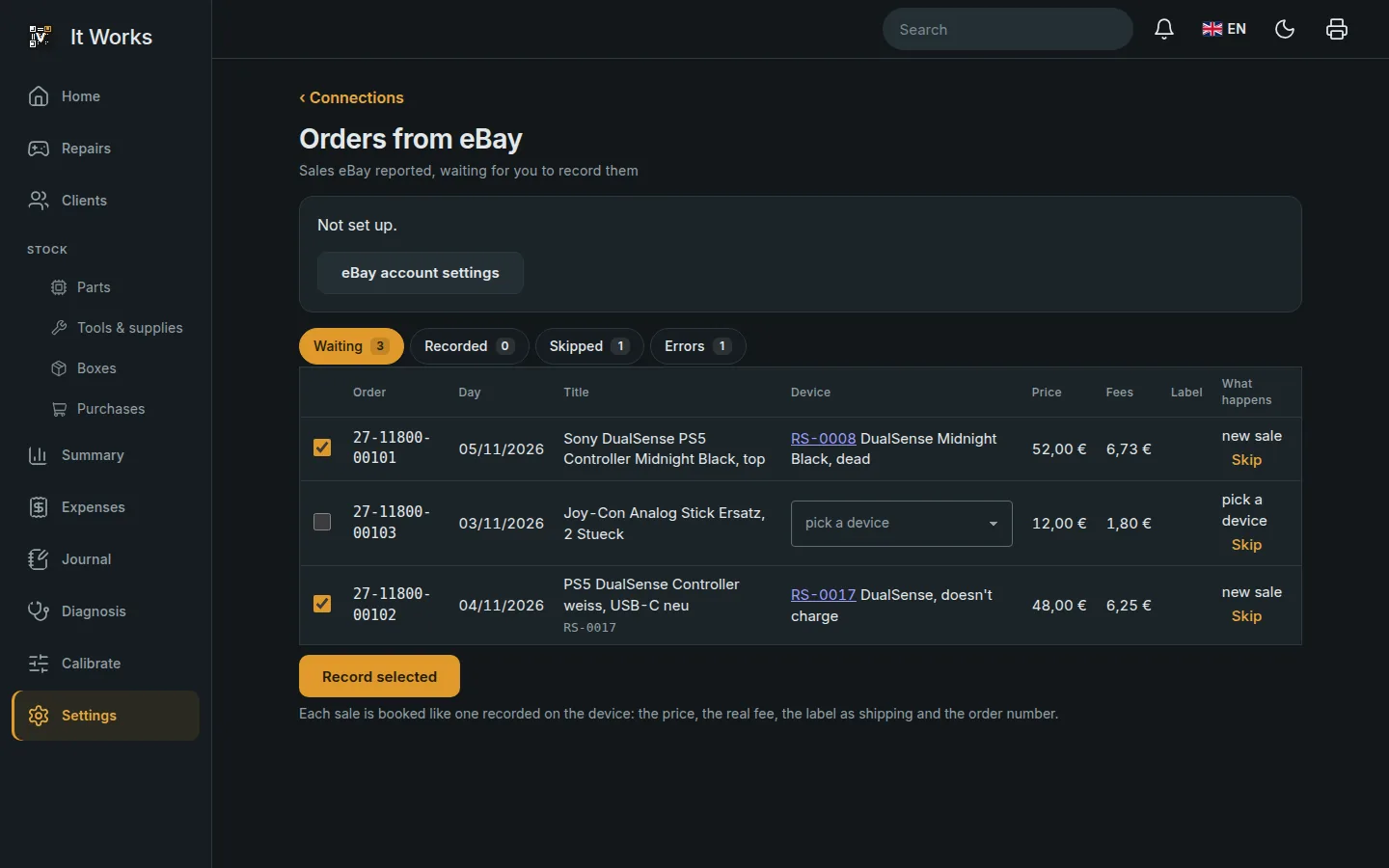
The page Orders from eBay (linked from the eBay card; its back link leads to Connections) lists what eBay reported, behind the chips Waiting, Recorded, Skipped and Errors. Sync now asks eBay at once; otherwise it is asked every hour (the first time 90 days back). Each waiting order shows the device its custom label or listing names; pick one where none was found, tick the orders and press Record selected: each sale is booked like one recorded on the device, with the price, the real fee, the label as shipping and the order number. Skip puts an order aside. A sale already imported from a report is recognised by its order number and not booked again.
Switch on Record by itself and orders whose custom label names an unsold device are booked during the sync; the rest still wait. When a sync finds new orders you get one notification, and Home shows how many wait.
Stock age
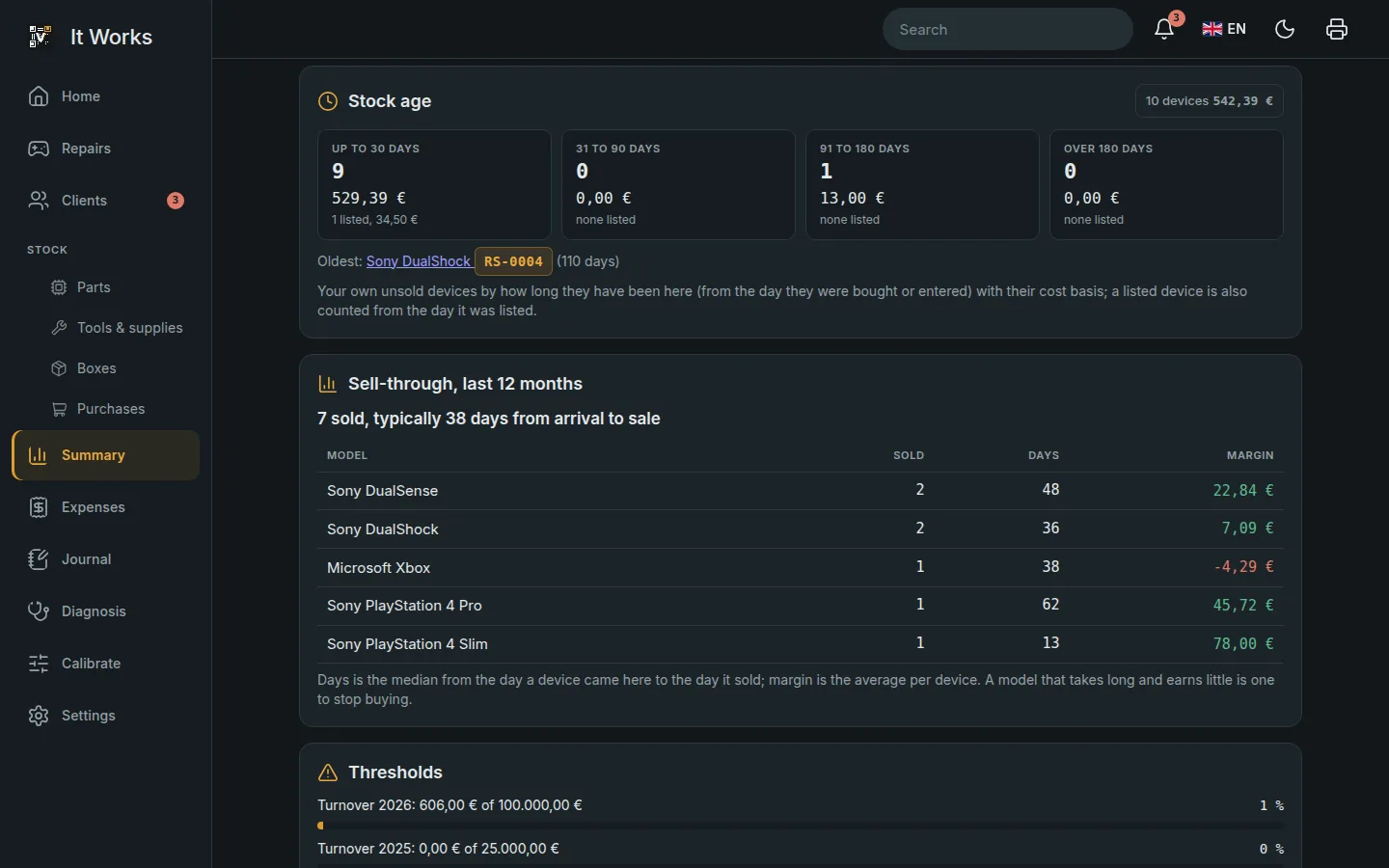
Summary shows how old your unsold stock is: your own devices (not sold, not donors, not in transit) in four groups, up to 30, 31 to 90, 91 to 180 and over 180 days, each with how many and their cost basis. A device counts from the day it came in (the earlier of added and bought); the listed ones are also counted from the day they were listed. The oldest device is named with its days and links to its card.
Sell-through
Next to it, Sell-through, last 12 months: how many of your devices sold and the typical number of days from arrival to sale, then a table of the ten models sold most, each with its count, its typical days and its average margin. A model that lies long and earns little stands out.
The turnover against limits you set yourself is on Year end and your accountant.