
Docs›Settings and administration
Sign-in, SSO and API
Settings → Sign-in & security is per person: everyone, technicians too, keeps their own way in there. It leads with how well you are guarded, then the password, passkeys, the authenticator and recovery codes. For the owner it also holds single sign-on, the trusted proxy header and API tokens. Who may sign in at all is on Users and roles.
Login and password
The usual way in. A fresh install asks whoever opens it first to Create your user: a login and a password of at least 10 characters, typed twice. Change the password needs the current one. Five wrong passwords lock that login for ten minutes; other logins carry on. A device stays signed in for 30 days after its last use; Sign out everywhere ends your own sessions on every phone and computer.
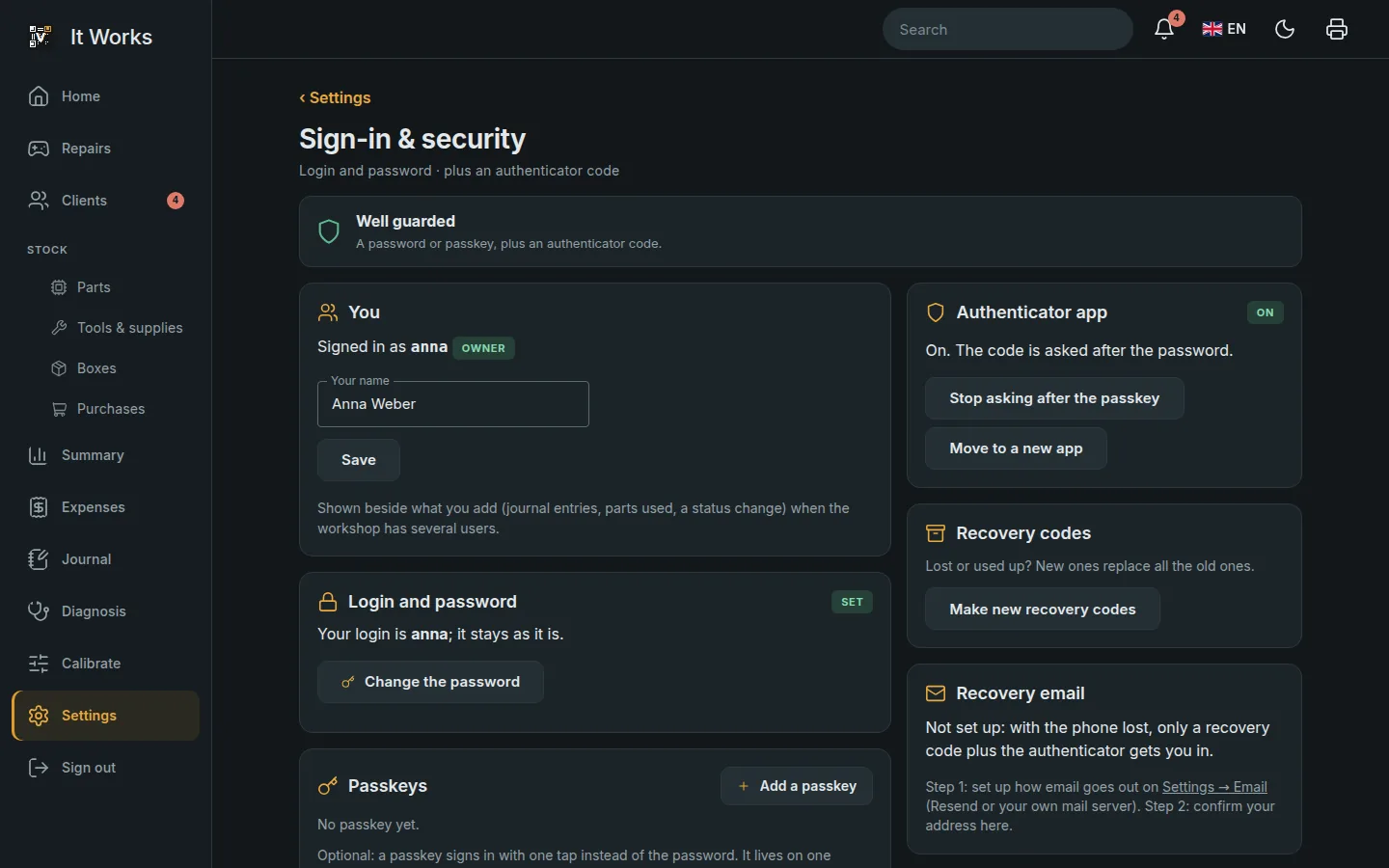
While sign-in is off, this page says so: no password or code is asked. With a password and a passkey but no authenticator, the guard line at the top reads Password only, because a passkey beside the password does not close the password's way in. Turn on the authenticator below to fix it.
Sign out is on Settings and, on a computer, at the foot of the side menu.
The screen that asks for the code has six large boxes across the whole card and, under them, a thin bar with New code in 12 s that counts down to the next code of your app.
Authenticator app
Set up the authenticator: scan the QR in Google Authenticator, Aegis, 1Password or any TOTP app and type the code it shows. From then on the 6-digit code is asked after the password. Verkly offers it right after you create your user, and Home reminds you until it is on.
Passkeys
A passkey signs in with one tap (Face ID, a fingerprint, the screen lock) instead of the password. Add a passkey names it after the device it is made on (iPhone, Mac, Windows PC…). With an authenticator, Stop asking after the passkey or Ask after the passkey again decides whether the code follows a passkey too. A passkey belongs to the address Verkly runs at and needs HTTPS; at a new address add one again. The last way in can't be removed.
Recovery codes and the recovery email
Ten Recovery codes, each working once: print them and keep them away from the phone. A recovery code plus the authenticator code signs you in when the password or the passkey is gone. Lost the phone with the authenticator too? Bind a Recovery email (an owner's, once email is set up on Email): then a recovery code plus a code mailed there signs you in, and that address is warned after a recovery sign-in or a new passkey. Make new recovery codes replaces all the old ones. Locked out with nobody else to help: the reset command.
Single sign-on (OpenID Connect)
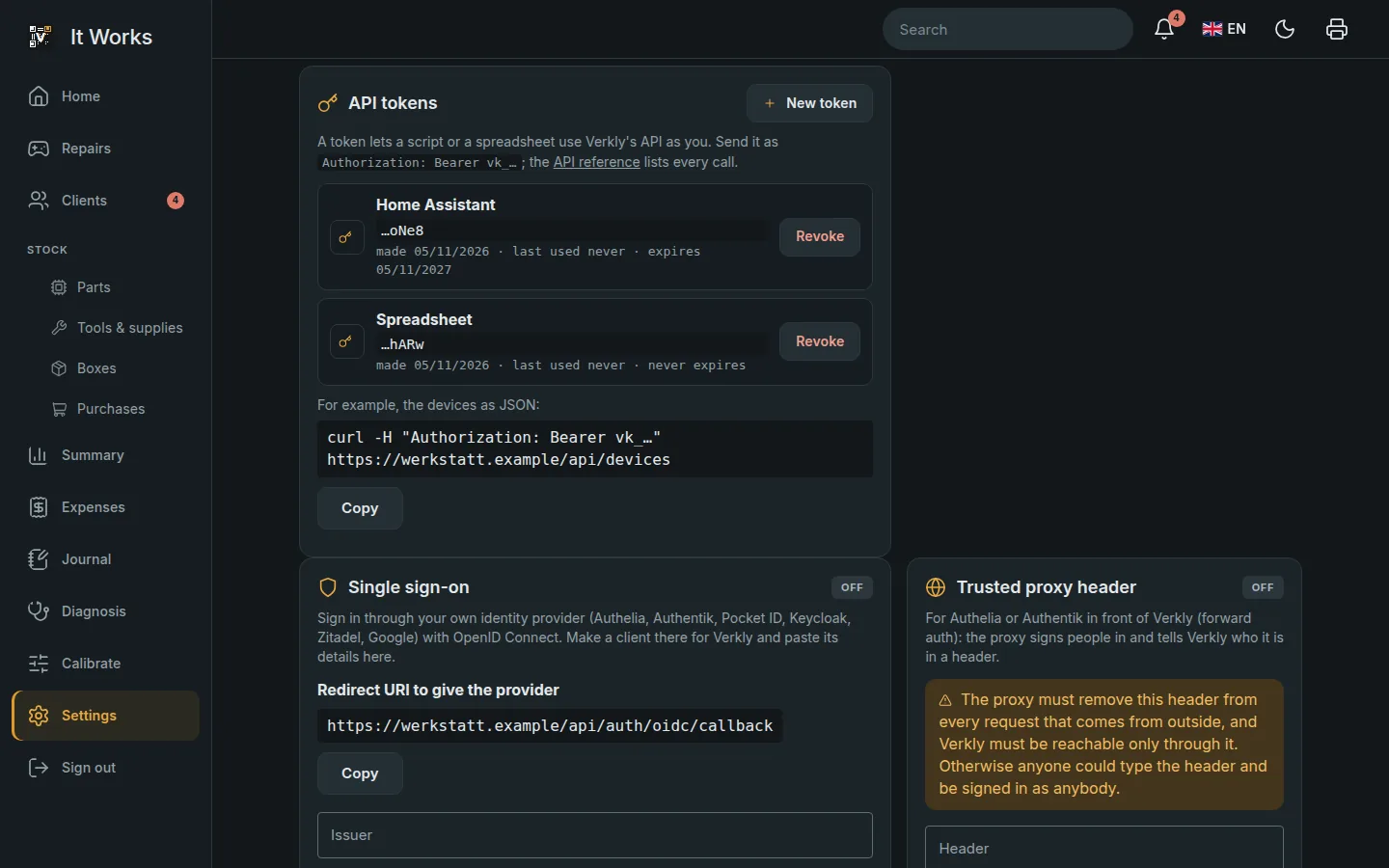
Already run an identity provider (Authelia, Authentik, Pocket ID, Keycloak, Zitadel, a Google account)? Verkly can sign in through it, with its button above the login and password. For a Verkly you run yourself (not the hosted one or the demo), at an https address.
- In the provider make a client for Verkly: the Redirect URI to give the provider (Verkly shows it with Copy, it is
https://<your Verkly>/api/auth/oidc/callback), scopesopenid email profile, PKCE with S256, the secret sent asclient_secret_basic(orclient_secret_post). - On Sign-in & security → Single sign-on type the Issuer (the provider's address, for Authentik
…/application/o/<slug>/), the Client ID and the Client secret, optionally a Button label, press Test and Save. - Decide how people are found (Find people): by email, then by the linked account, or only by a linked account. Each user can press Link my SSO account on their own Sign-in & security; with email matching a verified email equal to their user's email (Settings → Users) links them the first time.
Someone the workshop has no user for is refused ("Ask the owner to add you"), unless you choose that they become a technician. The authenticator code is not asked after SSO (your provider does its own second factor) unless you tick Ask the authenticator code after SSO too. SSO only: the password no longer signs in needs an owner with a linked account first; passkeys, recovery codes and the reset command still work. Allow a provider on the home network is on, since Authelia often runs beside Verkly; untick it for a provider on the internet. The owner sees "SSO linked" on Users and can unlink a user there.
Trusted proxy header
When Authelia or Authentik already stands in front of Verkly (forward auth) and signs people in, Verkly can take who it is from
the header the proxy adds. On Trusted proxy header give the Header (Authelia Remote-User, or
Remote-Email with "The email"; Authentik X-authentik-username or X-authentik-email), what The
header holds (the login or the email) and the Trusted proxy addresses it comes from (on Docker often
172.16.0.0/12; the page shows the address your own request came from). A header from any other address is ignored.
API tokens
A token lets a script, a spreadsheet or another program use Verkly as you. On Sign-in & security → API tokens press
New token, give it a Name of the token and an expiry (Never, in 30, 90 or 365 days) and Make the token. It is
shown once (vk_…): copy it now. Send it as
curl -H "Authorization: Bearer vk_…" https://<your Verkly>/api/devicesThe request runs as you, with your role's limits. The list shows when each token was made, last used and when it expires; Revoke stops it at once. A token never signs a browser in. Only with sign-in on. A technician makes their own tokens too: such a token does what the technician can, no more, so money and the owner's settings stay closed to it. The owner's list shows everyone's tokens, another user's with their name beside it, and the owner may revoke any of them.
The API reference
Every call Verkly's own pages use is documented at /api/docs (Swagger UI, linked from the API tokens card, works
without internet) and as OpenAPI at /api/openapi.json, for anyone signed in, technicians too. Paste a token into Authorize to try a
call there.