
Docs›Settings and administration
Notifications and Telegram
Verkly can tell your phone when something happens, two ways at once or either one: push notifications in the browser, and your own Telegram bot. Both are set up on Settings → Notifications.
What is sent
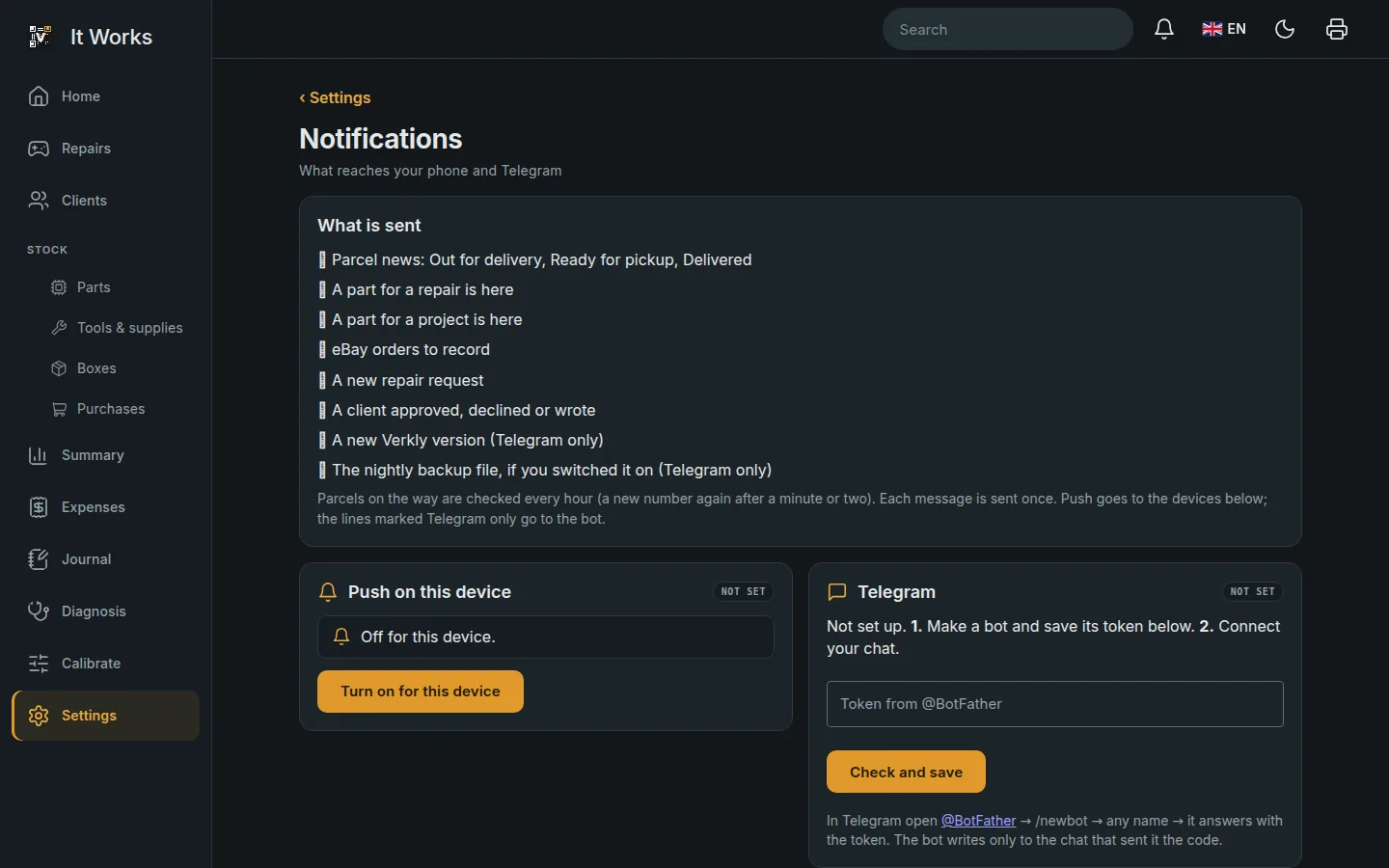
- Parcels: a tracked parcel that is out for delivery, ready for pickup or delivered (each status once, shown as one line, Parcel news). Parcels on the way are checked every hour; see Daily work for adding tracking numbers.
- A part for a repair is here and a part for a project is here: it arrived with its purchase.
- eBay orders to record: new orders waiting for you.
- A new repair request from the public form.
- A client approved, declined or wrote: from their status page.
- A new Verkly version: what changed, once per update (Telegram only).
- The nightly backup file, if you switch it on: the database as a file in your Telegram chat (Telegram only, see below).
The page lists all of this. Push goes to the devices below it; the lines marked Telegram only go to the bot. Each message is sent once.
The same bot can bring your clients news of their repair, if they ask for it on their status page (Talking to clients). Verkly reads the bot's messages once a minute for that.
The page looks like Connections: push and Telegram stand side by side, each with a pill that says whether it is on, and a saved bot token is a row with its last four characters.
Telegram
Verkly writes through a bot that belongs to you, so nobody else's service sits in between, and the bot answers only the chat that connected it.
- In Telegram open @BotFather, send
/newbot, give it any name and a user name ending inbot(for examplemyworkshop_verkly_bot). BotFather answers with a token like123456789:AAE…. - In Verkly: Settings → Notifications → Bot token, paste the token, Check and save. Verkly asks Telegram whether the token works; a wrong one is refused and nothing is saved.
- Press Open @yourbot and press Start: Telegram opens your bot with a one-time code. Press Start, come back to Verkly and press Connect. (On a computer without Telegram: send the bot the message Verkly shows, then Connect.)
- Send a test notification. It should arrive within seconds.
Only the last four characters of the token are ever shown again. To move to another bot, paste its token and connect
again. On your own server the token can also come from the stack as TELEGRAM_BOT_TOKEN; one saved on the
page wins.
Nightly backups to Telegram
Settings → Backup → tick Send the database to Telegram. Each night's backup of the database (without photos, up to 49 MB) arrives in the same chat, so a copy lives outside the machine even if its disk dies. If sending fails, the Backup page says why.
Push notifications
- On Settings → Notifications press Turn on for this device and allow notifications. Do it on each phone or computer that should get them.
- Push needs the https address (Tailscale, your own domain or a hosted workshop); at home over plain
http://use Telegram instead. - iPhone and iPad: push works only from the Home Screen icon (iOS 16.4 or newer). In Safari tap Share → Add to Home Screen, open Verkly from that icon, then turn push on there.
Nothing arrives?
- Telegram: did you press Start in the bot and then Connect? Is the bot muted or blocked in the chat?
- Push: are notifications for the browser (or the Home Screen app) allowed in the phone's settings? On a computer, is Focus / Do Not Disturb on?
- Both need the server to reach the internet; the rest of Verkly works without it.