
Parts
Stock → Parts is your stock of spare parts. Each row is a lot: a batch of the same thing bought together, with a
PT- code and a label.
Lots and unit cost
A lot has a quantity and a total including shipping; the unit cost is total ÷ quantity. When a part goes into a device, that unit cost is frozen onto the device at that moment, so revaluing the lot later never changes a repair already sold. The lot form shows what a piece costs while you type. A lot that came with a purchase edits its money in the purchase, not here; the other fields are yours. The card shows four figures: left (with "N free" when some are reserved), lot size, per piece, lot total. A hand-bought lot can be in a foreign currency: amount and rate, with the euros derived. The rate field fills in by itself with the European Central Bank's rate of the purchase day when you give none and the settings have none. The ★ photo sits small in the top right corner of the card's head, outside the folded blocks, and a tap opens it large. Photos is where you upload more and pick another ★ one.
Units
A lot is counted in pieces by default, or in metres, grams or millilitres (Counted in on the form and on a purchase parts line): a cable is bought by the metre, flux by the millilitre. Pieces stay whole; the other units take three decimals, so ten 0.1 ml take a 1 ml lot to exactly zero. The unit cost, the count and the label follow: €2.50 per m.
Packs
Two bags of 50 screws in one listing? Type the amount in one pack as the quantity and how many there are in Packs: the form says 2 × 50 pcs, each its own label. Save makes one lot per pack, each with its own code and label, and splits the total evenly between them (the cents add up). The list then shows them all and offers Print 2 labels, On paper or Done; Save and print label prints them all at once. Use one now and the other stays in stock as it came.
A part already entered as one lot can be split later: Split into packs… in the part's Count form asks How many packs (2 × 50 pcs, 1,50 € per pack), keeps the card as the first pack and makes the others with their own codes and labels, then offers Print 2 labels, On paper and Done. What was used, counted missing or reserved stays on the first pack and must fit in it. A part from a purchase keeps the purchase adding up; one that already came as several packs of a line is changed in its purchase instead. A part from a kit doesn't split: each value of a kit is already its own part.
Kits: sample books and assortments
An 0603 capacitor book with 50 values, 50 pieces each, is one thing bought but 50 parts on the shelf. On Parts, Add part
offers A kit under Many at once: give the kit a name, what you paid in total and the supplier, then
list what it holds, one row per value (value, package, pieces). Type the rows with Add a value, or Paste a table
straight from a spreadsheet (tab, ; or , between the columns, a header row optional) and press
Read the table; a bare list of values takes Pieces of each, when the table has none. With an OpenRouter key,
Read it with AI reads a photo of the kit's insert or the listing's text into the same list. You always check the list
before saving.
To give every value the same package, voltage or pieces at once (a book of 170 values, all 0603, 50 of each), fill in For every value: Package, Voltage, Pieces of each value, and press Set for every value; only what you typed is set. On a phone each value takes two lines: the value, then its package, volts and pieces. A row that has a value and no pieces yet is marked, and a line above the list says how many are left. A photo of a book often lists the values without the pieces: the model then leaves them blank instead of guessing, and you can type them beside the photo in Pieces of each, when the photo shows none before you press Read with AI. If a model still finds no values on a clear photo, try another model on Settings → AI recognition: some read long tables better than others. A very long list the model stops reading part way keeps what it read, and Verkly says so.
On Parts and in a box's Contents a kit is one row: the kit's name, how many values and the pieces left of all of them. Tap it to open the kit's page: the box and purchase it belongs to, Edit all values…, Print all labels, Delete the kit…, a search over its values and Select to edit or print several of them. Searching Parts shows the values it found right under the kit's row; while selecting, a tap on a kit's row ticks all of its values (and takes them off again). A part's card links to its kit.
The kit page's print button says how many labels it makes (Print 12 labels) and asks first when the kit has more than 20 values.
A name entered wrong is fixed on the kit's page with Rename…. The values keep their own names; the box made for the kit takes the new name too, unless you renamed that box yourself.
A kit takes photos at the top of its page, folded under Photos: tap the field, paste a picture or drop it there, then Upload. The first photo becomes the ★ one, shown big under the kit's name and as the kit's picture on Parts and in a box's Contents; tap ☆ on another photo to make it the ★ one. A photo removed with × goes to the archive.
A kit's page looks like a part's card. The head has the code and a Kit tag, the photo in the top right corner, where the kit lies, and Label. Three tiles show the values, the pieces and what you paid. Rename…, Edit all values…, printing and Delete the kit… are grouped below the tiles. In a box's Contents a kit shows its photo like a part or a tool does, and every picture there sits in the same frame.
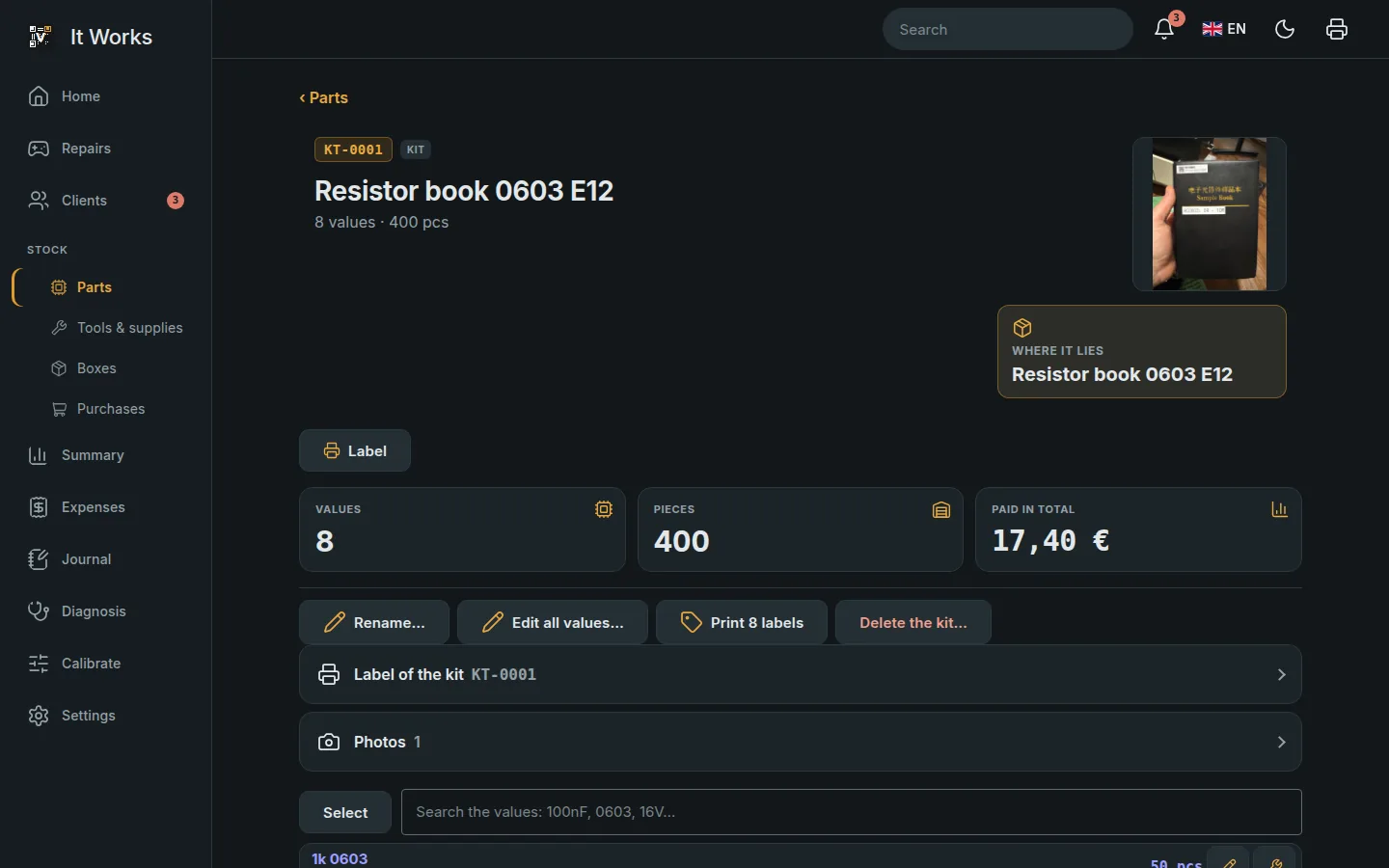
A kit has its own label at the top of its page, folded under Label of the kit (above the values, so a long book needs no scrolling): the code KT-…, the kit's name, how many values and its box. Stick it on the book or the drawer: scanning its QR opens the kit's page. The Printer & labels page has a Kit layout like the other kinds.
On a phone, swipe a part's row (on Parts or on a kit's page) to the left to delete it: it asks first, and a part used in a repair, reserved, from a purchase or in a build is never deleted. Swipe it to the right for Use on…. The strip under the row says what letting go will do; let go before the colour fills and nothing happens.
Open a kit and press Edit all values… to set the Package (size), the Voltage, the category or the box of every value at once, for example when a book was read without its sizes. A value's name follows: "47nF" with 0603 and 16V becomes "47nF 0603 16V", and the voltage leads its description. When you type a kit's values, a capacitor's size and voltage are read from what you write ("C0603, 47nF, 16V", "2,2nF 6V3"), from a pasted table with a voltage column and by the AI; the editor has a Volts column. Delete the kit… removes a kit entered or read wrong with all its values, and, when you tick Also remove its box, the box with the compartments it made. A kit whose values were already used, reserved or built into something stays, and a kit from a purchase is changed in that purchase.
Save the kit makes one part per value ("100nF 0603"), each with its own code and label, and splits the price evenly per piece, so every value of a 50 × 50 book costs the same and the cents add up to what you paid. Under Where it goes pick A new box with a compartment per value: Verkly makes a box with its own dividers (50 values make a 5 × 10 map), one compartment per value named by it, and puts each part into its compartment. Or pick a box you have, or leave it for later. A part's card says which kit it is part of.
To change one value of a kit, press Edit on its row: its name, its package and the pieces left. The pieces are a count, so the kit's money does not change. A sample book counts as one kind of part on Parts, and its pieces are shown apart, so the stock does not look huge.
Part categories
A list you keep on Settings → Catalog and categories → Part categories, seeded with the usual ones. Any way a part is saved (form, purchase, CSV, donor, chips from a photo) adds its category to the list and takes the list's spelling. Rename one and every lot follows; a category can't go while parts are in it. On Parts the categories are chips above the list, like a spreadsheet's tabs, and combine with the search; both only hide rows, so your ticks survive.
What a part fits
A part is either universal (screws, thermal pads) or bound to a device category, then a maker (mandatory once a category is picked, so an Xbox part can't be spent on a PlayStation), optionally a model, and under the model some board revisions ticked from the catalog (a DualShock 4 USB board for JDM-040 and JDM-055, not JDM-001). Using the part on a device that doesn't match is refused with the reason; a device whose tier is blank is let through, since Verkly can't judge. The device's stock picker greys parts of another revision. The same fields sit on a purchase parts line and in the CSV.
Reservations and "N free"
A diagnosis that marks a part as arrived reserves that many pieces of a lot for that device (see Diagnosis and prices). Reserved pieces are not available to other devices: the lot shows "3 free / 5 pcs", its card lists the devices as chips, and the shopping list counts only free stock. Taking a reserved piece on that device consumes the reservation. A reservation never exceeds what the lot has.
Running low
Alert when this few left on the lot (blank = never) is judged per part name across its lots: free pieces against the highest level any lot of that name carries. A low part gets a chip on its row, Parts has a Running low chip and Home lists the names.
To restock
With the Running low chip on, the owner sees To restock above the rows: each low part with how many to buy (enough to get back to twice its alert level), the price of its newest lot, what that comes to, and the total. A part with a link or a supplier names them, so reordering is one tap away.
Bulk edit
Select, tick rows (also through a search), Edit selected: what they fit, a category, a box, a Package (size), a Voltage, "Show to my group"; only what you choose is sent, to every ticked part, in one go. Money, quantity and name are never touched this way.
Using a part
A part is never spent without a device. Use on… on the row or the card asks which device still in the workshop and how many; the device card's Part button does the same from the other side. The lot's card lists Used in. A lot's stock never goes below zero, even with two people tapping at once.
Use on… starts on Pick the device, and Use part stays off until you pick a device and an amount above zero. A part card you opened from a device's card starts on that device.
Point at a part, tool or supply card and the whole card lights up, the strip with Use on… or Use 1 at its foot included, not only its top half.
The card on a phone
On a phone a part's card shows Use on… right under its head, and Details stays folded until you open it. The bar at the foot holds only Save changes; Clone, Make it a supply… and Delete sit in a row above it.
A picture that can't be loaded shows a grey tile instead of a broken-image icon, on every screen.
A part that is really a supply
If you entered something under Parts and it is a supply or a tool, open its card, unfold Details and press Make it a supply… or Make it a tool…; for the other way round press Make it a part… on the card of a tool or supply. The new card has its own code (the old code and label still open it) and keeps the money, amount, place, photos and the purchase line it came with. It works only for something that was not used on a device or logged as used, counted, reserved or sold, and that is not a kit's value or a donor's part. A part that came with a purchase line of several things moves from the purchase instead: change the line's type there. What only a part has (package, equivalents, datasheet, the alert level) is written into the supply's description.
Selling a part
You took a chip off a PS5 Slim and someone paid for it: press Sell this part on its card (owner only). Fill in the pieces (the card says how many are available), the price the buyer paid in total, delivery included, the platform (chips), the fee (blank takes the platform's percent), the postage you paid, packaging, the day and a note. The ledger under the form shows Price, fee, shipping, packaging, Cost of the part and Margin before you save. The pieces leave stock, so every count, the stock value and the shopping list follow. Reserved pieces are never sold, and a part still on its way cannot be sold.
The margin is the price less fee, postage, packaging and the part's own cost, with no flat overhead (it is not a repair). It joins the month of the sale. The Sold list on the card has Cancel sale, which brings the pieces back. A part with a sale cannot be deleted until the sale is cancelled. When everything is sold the card shows a Sold pill, and a Parts row says "N sold". Part sales show on the year paper, in the cash view and in the accountant's files.
Taking a part off a donor in steps: Add more taken off the donor on the part's card, or Add more taken off on the donor's Harvested parts row, adds pieces and their estimated value to the same part. In the donor's Harvest a part form, typing the name of a part already taken off turns the button into Add to PT-0007. This works until the first piece has been used, sold or counted; after that the next ones are a new part. It is refused when the donor has been sold or written off.
Price not set
On Chips from a photo and Scan several bags a price is no longer split evenly over unlike parts. Each part has its own optional price; a part saved without one gets a Price not set mark instead of a silent 0,00. The mark is an amber pill on its row and card, the price reads "not set", and there is a Price not set chip on Parts and a line on Home. Use on… asks first ("This part has no price yet, so the repair's cost will miss it") with Use it anyway or Set the price. Type the total on the card and the mark goes away. Nothing in your books changes; a part used while its price was not set keeps the 0,00 it was used at.
The category fills itself in
A new part, tool or supply gets its Category filled in for you. Type the name and Verkly looks at what you already have: a resistor lands with your Resistors, a pair of tweezers with Tools. It works the same when a shop link, a photo, a part number or a bag label fills the form, on a purchase's parts lines and when you add a kit. A line under the field says where the suggestion came from ("Suggested from similar things: …", "Suggested from the name: …", "Suggested by AI: …"), with the next two best categories as one-tap buttons. A category you picked yourself is never changed. When nothing fits and the name is clear, a new category is proposed and only created when you save. With an OpenRouter key the model is asked as well when your own stock cannot tell.
Sorting, kits and Edit selected
Parts can be sorted by Newest first, Oldest first, Name A to Z, Least left first or Most left first; a used-up part is always last, and a part still on its way says "coming" with its amount. Counts read "1 of 2 pcs left" instead of "1 / 2 pcs". A kit's values are one short row each (the name over its code and package, what is left, Edit and Use on… as small buttons), so a kit of 80 values is less than half as long to scroll. Edit selected keeps Apply in view, says what the parts fit in plain words (Leave as it is, Every device (universal), Only one kind of device…) and folds the rarer changes (package, voltage, alert level, group).
The lot's own count
Pieces here on the card: type what you actually find. The difference becomes an adjustment with a note, undone with Undo unless the found pieces were used since; the money of the lot doesn't move. A box count does the same for every lot in the box (Boxes and furniture).
Used up
A lot that ran out but should stay in the books (the last grams of a paste) gets Used up in its count form, with an optional note: everything left is booked as one adjustment, the lot shows 0 left, sinks dimmed to the bottom of Parts and is no longer offered for a repair. Its unit cost and total stay; only the stock value drops, as with a count. Refused while pieces are reserved (the message names the devices) or the lot is still on the way. Undo the adjustment to bring it back. An alert level stays, so a used-up part with one shows Running low until you reorder it.
History
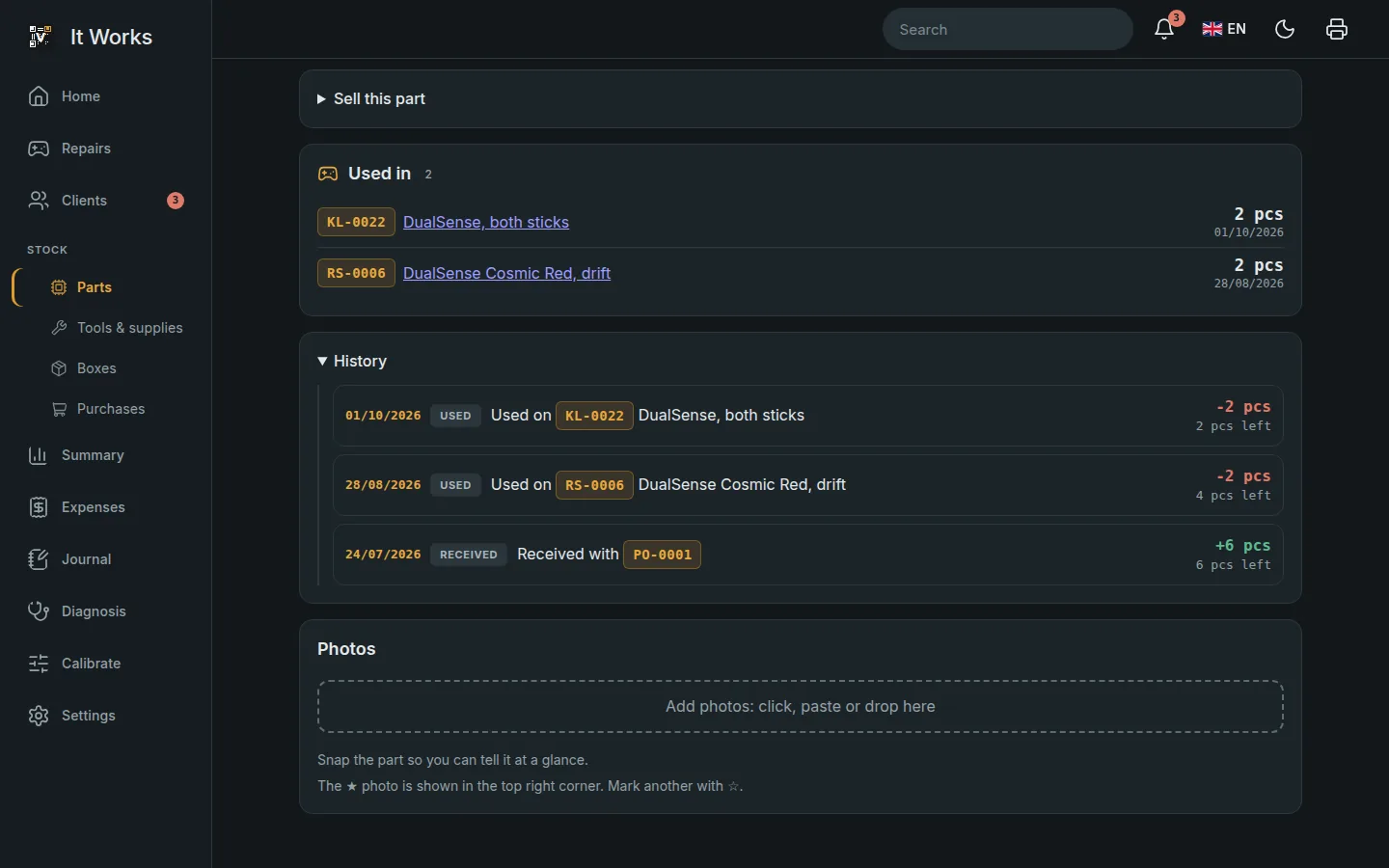
The History fold on a part's card, after Used in, is one timeline newest first: when the lot arrived (with its purchase) or was harvested from a donor, every repair it went into (device and who), every count and used-up adjustment with its note, and the reservations standing now, each step with how many were left after it.
Electronic parts
A lot may carry a package (DIP14, SO-16, 0805), equivalents (other part numbers, КР1533ЛИ1 for 74ALS08) and a datasheet link; the search and the group lookup find a part by its equivalents too. A long marketplace title goes into Description, the short name is what fits the tape.
Adding parts fast
Besides the form, Parts → Add offers From a shop link, Scan a bag label and Scan several bags (Digi-Key, Mouser, LCSC, TME), Look up a part number at Mouser, Digi-Key or TME, and a spreadsheet import. A part's card has Fill from the part number for its empty fields. All of them: Adding things fast.
A kit table that was pasted or read by the AI counts as not saved yet too: leaving the page asks first.
Chips from a photo
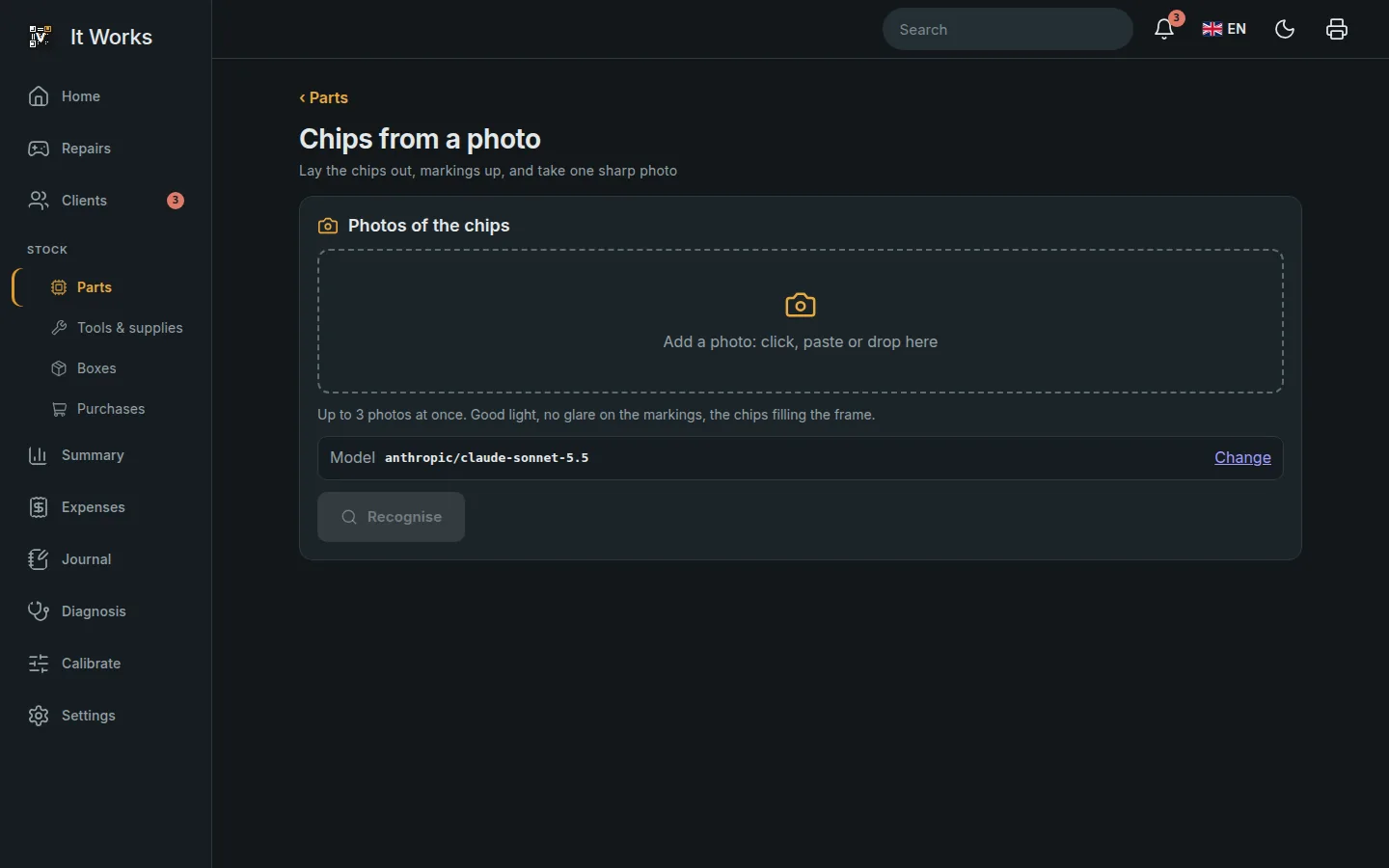
Parts → Add → Chips from a photo: lay a few chips out, markings up, one to three sharp photos, Recognise. An AI model reads the markings and proposes a part number, package, maker, equivalents and a datasheet search link per chip, and marks the ones you already have. You check the cards (a worn marking can be misread), type quantities, pick a box and optionally a price split over them, then save: each becomes a lot with the photo. Nothing is written before that. It runs on your own OpenRouter key, pasted on Settings → Connections → AI recognition (OpenRouter), with the model you pick there (Claude Sonnet by default); you pay OpenRouter, about a cent a photo. What leaves your server: the photos, shrunk to 1600 px, and the question; nothing from your database.
The cards the AI proposed count as not saved: leaving the page asks first.
Spreadsheets and CSV
Settings → Import and export → Parts lots: the export is the import template (name, category, qty, unit, total, currency, what it fits, box, package, equivalents, datasheet, description, shared, min stock…). A hand-kept parts sheet reads as it is: headers like Part number / МАРКА, Equivalent / АНАЛОГ, Package / КОРПУС, Quantity / КОЛИЧЕСТВО, Note / ПРИМЕЧАНИЕ are understood, rows pasted from a spreadsheet are tab-separated, a missing price books the part at €0, a quantity of 0 keeps it with none left, and Category for rows without one fills a whole tab. Preview first, then Apply; nothing is written before Apply. Pictures from a listing link: Get picture from the link on a card, Get missing photos (N) on the list.
Who else has it
In a group, searching a part you don't have shows who in the group has one, by name, package or equivalent, never how many or at what price.