
Daily work
Home
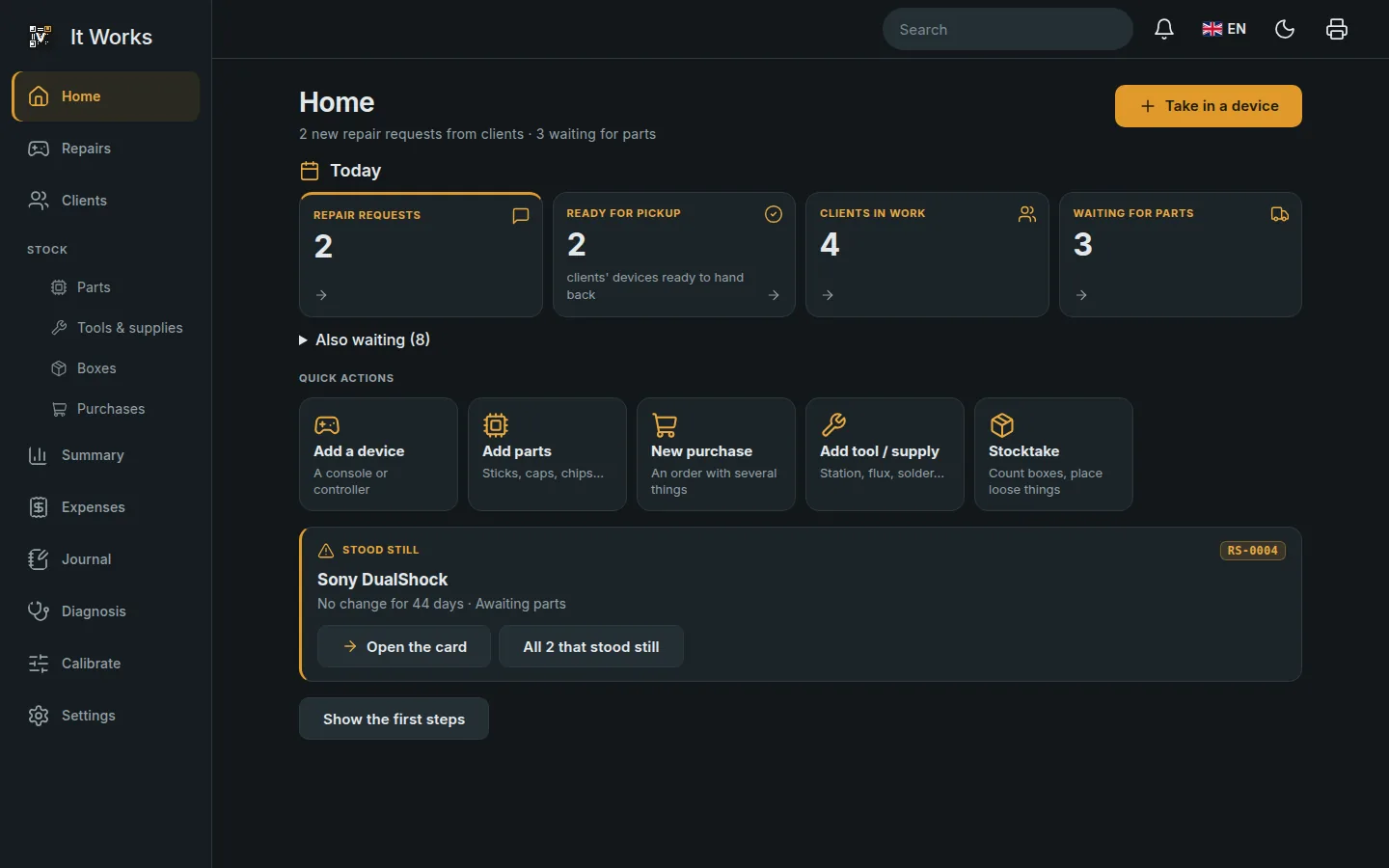
Verkly opens on Home. It leads with Today: the four most pressing counts as tiles (new repair requests first, then clients' devices ready to hand back or to send, parcels delivered but not marked received, clients in work…), the rest folded under Also waiting, each a link to the list behind it. Then the quick buttons (scan, on a phone or tablet; add a device, parts, a purchase, a tool or supply, the stocktake), the device that stood still longest and, last, one Set up Verkly card. It holds the address notice, the second sign-in step, the demo and the first steps; a finished install has no such card.
Lists on a phone
On a phone the lists (Repairs, Parts, Tools & supplies, Boxes, Purchases, Journal, Users) have a short head: the title with Add and Select on one line, any other buttons on a line under them, and the search right below. A long title is shortened with … so the buttons keep their room. The sort is an icon beside the search: it shows a dot when the order is not the first one, and its name says which order is on. Where tiles already show the numbers, there is no subtitle. On Boxes the search comes before the furniture; the Journal shows its entries and photos in the line under the title; the Users tiles appear from three users. The header gives the workshop's name two lines, and the printer icon lives in Settings.
Each tile opens the list it counts: Ready for pickup opens Repairs with only the clients' devices that are ready to hand back, and so do the tiles for the queue, the ones to send and the ones not collected. The bell in the header counts new messages and price answers from clients; tapping one opens the repair at that message. Each Repairs tile opens exactly the rows it counts, clients' devices and your own together, and the chip that counts everything still open is called Still open; the page says how the numbers split, for example 20 of your own (2 in transit) · 8 client repairs.
Buying
A purchase is one order or listing: what was in it with each item's listed price, and what you paid; Verkly splits that over the lines to the cent, tracks the parcels and makes the devices and parts when you mark it received. All of it in Purchases.
Parts
A parts lot is a batch of the same thing: 10 hall sensors for €24.50 is €2.45 each, frozen onto a device when the part goes in. Units, categories, what a part fits, reservations and running low: Parts.
Chips from a photo
Lay a few chips out, take a photo, and an AI model reads the markings into parts lots, on your own OpenRouter key: Parts → Chips from a photo.
Groups: who has a part
Settings → Group: start a group (a club, a few friends) and send the invite, or join one with an invite you got. When you search a part number and have none, Verkly shows who in your group has it, with the contact they gave, so you can ask to borrow it. The group sees only that you have a part (its name, package and equivalents), never how many, prices, boxes or clients. You choose what it sees: every part in stock, or only those marked Show to my group (on the part, or Select → Edit selected on Parts). Works on your own server and in a hosted workshop alike. Choosing every part in stock asks first.
Repairing
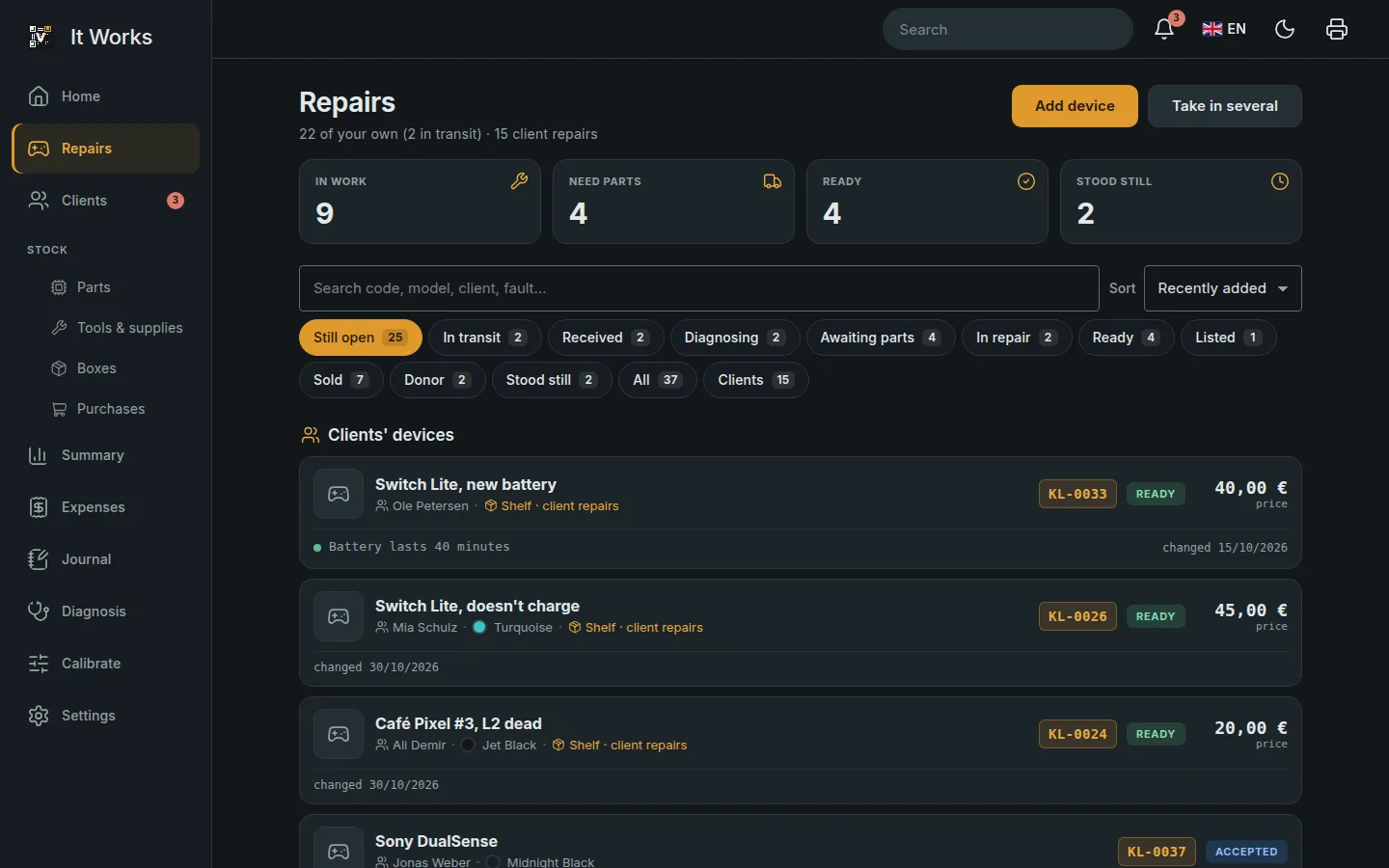
A device moves through Received → Diagnosing → Awaiting parts → In repair → Ready → Listed → Sold (In transit before them while a purchase is on its way); the card's next-step button moves it on. On its card you tick the diagnosis, use parts from stock, write journal entries with photos and files and note the hours. Every block is in The device card; the sheets, prices and a part's way to the device in Diagnosis and prices.
The Repairs list sorts by when a device was added (Recently added, Oldest added), when it was bought (Newest bought, Oldest bought) or when it was sold (Last sold). The sort you pick here, on Purchases and on Tools & supplies stays after you reload the page or come back later; it is kept on this device.
A device that can't be saved becomes a donor: harvest its good parts back into stock, write off the rest.
The Journal tab
Behind More on a phone, Journal shows every repair journal entry of the workshop as a timeline by day, newest first: each note with its device and client, whether the client sees it, its photos and files. Chips filter it: Client devices, Own devices, Client sees this, With photos. Entries of a deleted device stay here under its code.
Calibrate
Calibrate (behind More) has two sides. Nothing of either is stored in Verkly. A DualShock, DualSense or Xbox controller's card has a Calibrate button that opens the right side.
PlayStation: the free DualShock calibration tool, in a frame with Reload and New window ↗.
- For a DualShock 4 or DualSense: test or calibrate its sticks, triggers and battery from the browser.
- You need: Chrome, Edge or Opera on a computer, the controller on a USB cable, and the internet (the tool is a web site; the rest of Verkly works without it).
Xbox: DriftGuard, someone else's beta tool (not open source), opened with Open DriftGuard ↗.
- For Xbox One, Series, Elite and 360 controllers.
- You need: Chrome, Edge or Opera on a computer and the controller on a USB cable. On Windows the controller first takes the WinUSB driver, which DriftGuard's Instructions page sets with Zadig.
- Writing a calibration changes the controller: at your own risk.
Selling
Record the sale: the price, the platform (its fee comes from Settings → Money and rules unless you type one), shipping and packaging. The margin appears at once and the month's summary moves. A mistake? Cancel the sale; nothing else needs undoing.
Listing a device on several marketplaces, eBay reports and the eBay connector, stock age and sell-through: Selling and marketplaces.
Tools and supplies
Things that aren't parts: a soldering station is a tool (an investment, with a payback gauge on Summary), flux and wick are supplies (counted in the month they were bought; using them up is a note).
Units, using a supply, used up, the category and supplier lists, selling a tool and general expenses: Tools, supplies and expenses.
Finding things
- Search: the box at the top searches everything: a code, a part number, a shop, a word from the journal, in any letters. Or scan a label with the camera button.
- Matches as you type drop down under it. All results opens the Search page, with a chip per kind.
- Every word counts, in any order and in any field: "115 tip" finds "C115 Welding tip". What holds the whole phrase comes first. The list searches and the drop-downs with a search work the same way.
- It remembers: open a result, come back, and the words and results are still there, scrolled where you were. A card opened from them leads back with "‹ Search". Tapping the box again brings the last words back, selected, so typing replaces them.
- × clears the words.
- The search boxes of Parts, Tools & supplies and Boxes keep their words too when you open a card and go back.
Going back
A card leads back to the page you opened it from, by that page's name: a part opened from a box's contents shows "‹ " and the box's name. Going back, with that link or the phone's back gesture, lands where you were on that page, so a long box stays scrolled to its contents. A tap on a section in the bar starts that section from the top.
Typed something and pressed Back, or closed the add window? Verkly asks before it throws what you typed away.
Search shows what it found
Every search result has a thumbnail: the photo of a device, part, tool, box, purchase, journal entry, kit or expense, a box's drawn model when it has a size and no photo, an initial for a client and a small icon for the rest. The header's drop-down has them too, smaller. A client's device says so everywhere it shows up in search, in Put here and in the journal: a small Client tag and the client's name. A hit for a journal note or an expense opens that very note or expense, outlined, and a kind with more than 25 matches says how many there are and to add a word. Web addresses in the repair journal, faults and descriptions are links you can tap, also on the client's status page.
Start the diagnosis takes you to the Diagnosis block of the card at once, and the Diagnosis page leaves the repairs that are over out of its list (a button shows them). The tour no longer gets stuck behind the Add sheet when you tap what it outlines, and a repair request leaves the bell once you have opened the requests page.