
The device card
Every device, yours or a client's, has one card. Open it from Repairs, by scanning its label, or by typing its code in the search box.
The top
The code, the status as a pill that is also the picker, the box it lies in; the title, how many days it has been here, the first photo beside the facts (model, board, serial, colour, price, hours: only what is filled in, each with a copy button). The dock under them carries the next step (Parts are here, Repair done, Listed for sale, Record the sale: one button that moves the status on) and, with a team, Who works on it and the Timer: Start adds the time to the device's hours when you Stop, and starting a timer elsewhere stops the last one. Then the actions: In a box, Part, Entry, Photo, Label. A device that stood still shows how long.
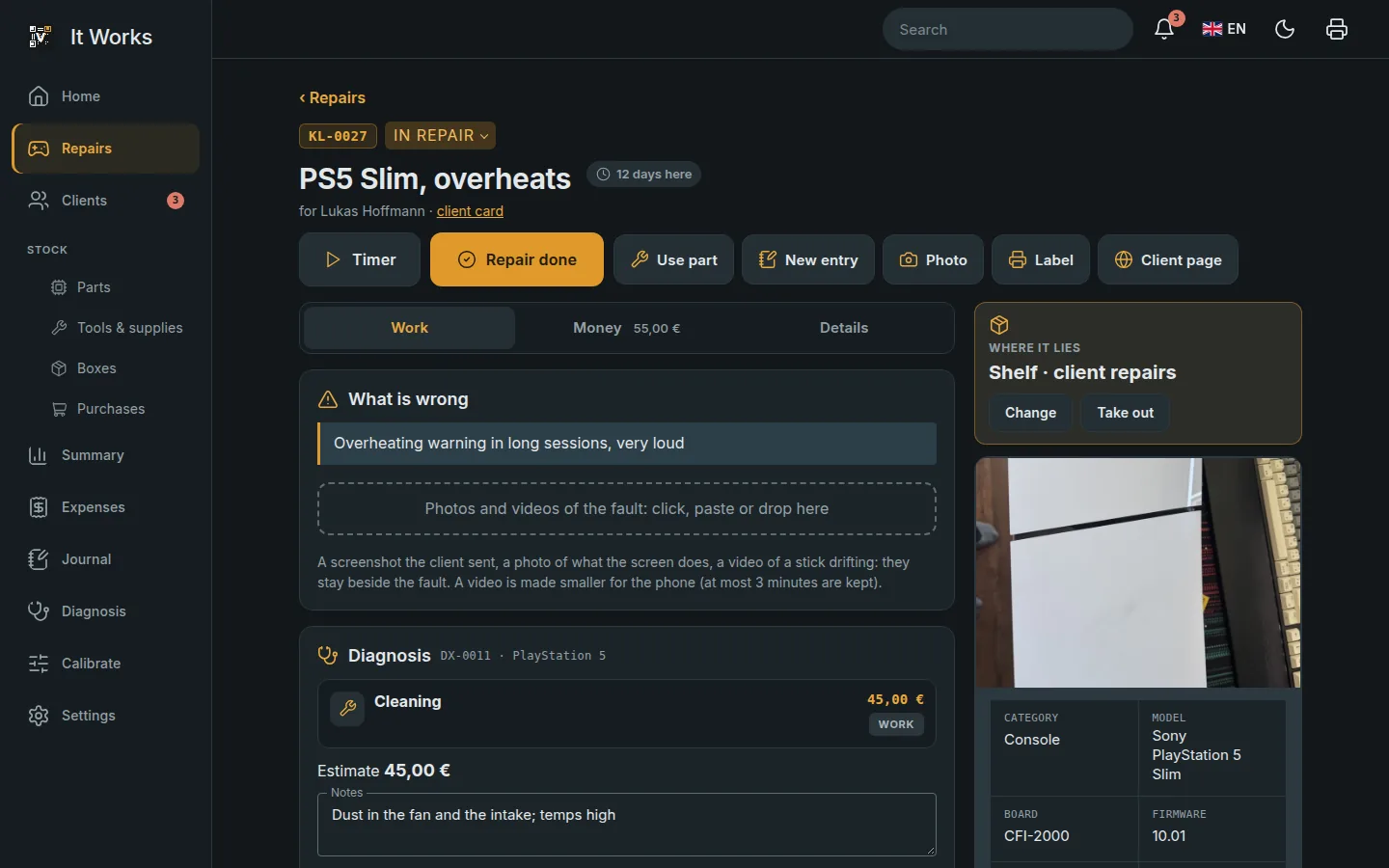
Three tabs
- Work: What is wrong, the diagnosis, the parts used, a donor's harvested parts, the repair journal, the photos.
- Money: for your own device the cost basis with each part under it and, once sold, the sale with its margin and Cancel sale; the sale form offers the platforms as chips and shows the margin the price would leave before you save. For a client's device the price, payments and the note for the client (see Client repairs). A technician sees no money.
- Details: the box, the shelf plan of the furniture it lies on, the form with every field in groups, and the Label block (print, copies, tape, On paper, PNG).
On a phone the row of actions shows Use part, New entry, Photo and Label, and More holds In a box, Client page and Calibrate. More closes with Esc or a tap elsewhere. A client's device says "for" the client and links the client's card, instead of repeating the fault under its title.
The tab you were on stays while the card re-draws itself after an action. A sold device is frozen: only its box and its warranty can change until the sale is cancelled.
Your own device's Money tab also holds its Listings on marketplaces (Selling and marketplaces); a client's Details tab holds the Signatures at intake and hand-back (Talking to clients). Bought from on the form is the drop-down of shops you used before, with + New shop… at the end.
Photos and What is wrong
A card has two kinds of pictures. Photos show the device: the first one is the card's big photo and the thumbnail in lists and boxes. What is wrong holds the fault: its photos and videos (a drifting stick shows better moving; a video is uploaded in pieces and shrunk on the server, at most three minutes are kept). A fault picture never becomes the big photo. The New device form has both zones too; a pasted picture goes to the zone you were last at, outlined so you can see it. On the card, ⇄ on a thumbnail moves a photo between the two blocks; with a mouse, drag it onto the other block. On a client's device a tick on a video shows it on their status page; photos reach the client only through journal entries marked for them. In an open photo, Previous photo and Next photo arrows and a counter (3 / 7) page through the album; a click on the picture shows the next one, a swipe works on a phone, Home and End jump to the first and last, and a click outside closes it. The page behind stays where it was.
What it is: catalog and colour
Category, maker, model and board revision come from the device catalog as drop-downs, each with a search when the list is long. Missing one? + Add a maker…, + Add a model… and the like at the end of a list add it in place, without leaving the form. The Colour offers that model's colours with a swatch (a PS5 its own, a DualSense its own); + Another colour… adds a new one with its swatch, and it joins the model's list. Settings → Catalog and categories shows each model's colours as chips (+ colour, ×). The picked category, maker and model have a copy button in the field, and the facts on the card a copy button each (Ctrl+C on the field works too).
A colour can have two tones, like the Spider-Man edition in red and black: its swatch is split in two. In + Another colour… press ½ to pick the second colour; Settings → Catalog and categories has the same ½ beside + colour. The DualSense list has all its colours and special editions, and the DualSense Edge has White and Midnight Black.
The lists for category, maker and model start on Pick…: nothing is chosen for you. On a client intake you tap category and maker once each.
Consoles and controllers have a Firmware field after the serial number: the version it runs, up to 40 characters. It is on New device, Device details and each row of Take in several, but only for a Console or a Controller (or when it already holds a value). On the card it is among the facts with a copy button, the search finds it, and the devices file has a firmware column (the headings FW and Firmware-Version are read too). Read from USB fills it with its own Use it tick.
Editions and device pictures
A PlayStation 5, its Slim and the Pro come as editions (Disc Edition, Digital Edition, the Pro with or without a disc drive), each with its own size and picture. A device picks one in an Edition field after Model (shown only for a model that has editions; "Not sure" is blank). The card, the Repairs search, the devices CSV and the label can show it. On a shelf plan a device takes the size of its edition, and its picture comes from the edition. In Settings → Catalog each model lists its editions as chips with a size and a + edition button. Nothing is changed for you: a device whose title says Digital is only offered the Digital Edition under the field.
New device: less to scroll
New device folds what most intakes leave empty (name, seller, link, hours, size, notes; for a client's device shipping, access code, hours, size and notes) under one line that opens by itself when a value is there. It starts on the side you picked last. The card of a new device, a batch, a purchase, a kit or parts from a photo no longer leads back to the form you filled in: Back goes to where you started, in the app and in the browser. A client's Money tab now holds only money: the note, the contacts and the status page moved to Details.
Read from USB
For controllers: Read from USB under What it is on the New device form and on the card's Details. Plug the pad into the computer and Verkly reads what it tells: model and board as the catalog names them, serial (a DualSense's, a Switch's; a DualShock 4 has none to read), colour, firmware and build date, Bluetooth address, battery, whether it answered like an original or a clone, and how far each stick sits from its centre at rest (a warning from 5 %). DualShock 4, DualSense and DualSense Edge, Switch Pro and Joy-Con over USB; Xbox pads over Bluetooth. A dialog shows every value with a Use it tick and lists other cards with the same serial or address; the form is filled, the card saved, and everything read goes into the journal. It only ever reads: no unlock, no calibration write. It needs Chrome, Edge or Opera on a computer and Verkly open over HTTPS; over plain HTTP the button is greyed and says why.
From a link
On New device, From a shop link under What it is reads a shop's or a listing's page: paste the link and press Fetch. When the title names a model of your catalog, Verkly picks the category, maker and model and, if that model knows it, the colour; otherwise the shop's short name becomes the device's name. Bought from, Link and, while empty, Notes (the listing's title) are filled too. The price stays yours to type under Purchase price; the page's price shows beside it only as a hint. Tick the pictures you want: they go onto the new device's card when you save, the first ticked one as its photo.
Own or a client's
Taken in on the wrong side? Details → This is a client's device… picks a client (or a new one with a phone), drops the purchase price and makes the client link; Make it my own device goes back. The code becomes KL- or RS- and the old one stays as Old code, so the label still opens the card. Not for a sold device, a donor, one in transit, one from a purchase or a client's device with a payment.
New device starts with two big choices: A client's repair or My own device. Take in a device on Home starts on the client's.
Donors and harvesting
A device that can't be saved gets the status donor. Harvest a part turns a good part into a parts lot worth the value you give it, subtracted from the donor; the rest is written off with Write off and leaves the calculations. A written-off donor gives no more parts. A donor can still be sold for whatever it fetches: the sale claws its write-off back and margins against what was left of it (How money is counted).
A donor's card has no Diagnosis: a donor is not repaired. Its Work tab starts with Harvested parts, with a line that says what harvesting does, and Harvest a part is also among the card's actions at the top.
The journal
Dated entries with a title, a note, any number of photos and files (UART logs, BIOS dumps, schematics, up to about 5 MB each; served so that nothing in them can run). New entry folds the form open; Edit moves it into the entry's place. On a client's device Show to the client puts an entry on their page with its photos. Deleting a device keeps its entries in the Journal tab under its code. With a team each entry, part used and status says who did it.
Receipt and invoice
A client's card has Receipt and Invoice in its Client repair block: A4 pages to print or save as PDF, with the texts from Workshop and documents.