
Projects and builds
Some of what you make is built, not repaired: a Nixie tube clock, an adapter board, a kit you assemble again and again. A project holds its bill of materials (BOM), matches every line to the parts on your stock, says where each one lies and how many you can build right now, and Built writes the parts off and tells you what the build cost. No rule of the books changes: a build is the parts it used. Open it from Parts → Projects; New project asks for a name.
The bill of materials
On a new project Edit the bill of materials is open: one row per part with its designators (R1, R2), the value or part number, the package and how many go into one build. Fill it in one of four ways, then Save the bill of materials:
- Upload a BOM file: the CSV that KiCad (the Symbol Fields Table, or the older BOM plugin), EasyEDA or JLCPCB exports, read
as it comes. Footprints become packages (
C_0603_1608Metricis 0603,SOIC-8_3.9x4.9mmis SOIC-8), a missing quantity is counted from the designators, DNP rows are left out and the same part on several rows becomes one line. - Paste a table: rows from a spreadsheet, with a header in English, German or Russian or without one.
- Read it with AI: a photo of a parts list or its text, read by your own OpenRouter model (Settings → AI recognition). You check the lines before you save.
- By hand: Add a line, and × to remove one.
Reading a file again keeps the lot you picked for a line with the same value and package. The owner edits the BOM; a technician sees it, picks lots and builds.
A bill of materials that was pasted, read from a file or read by the AI counts as not saved yet: leaving the page asks first, so press Save the bill of materials before you go.
What is in stock and where
Each line of the Bill of materials shows the part on stock that fits it, as a code with the box it lies in, and its Need, Free and, in red, Short for the count you build. Verkly reads values in any spelling: 100nF, 0.1uF, 100n and 0,1µF are one capacitor, 4k7, 4.7k and 4700 one resistor. A part number or an equivalent of a part fits first, then the same value in the same package; the same value in another package is offered in the list but never picked for you. Pieces reserved for a repair are never counted.
The select under a line changes it: Pick automatically, one of the parts that fit, or Not from stock (left out of the build) for something you don't keep on the books, like wire. The pick is remembered for the next builds. A line can also be ticked DNP (not fitted). A line takes its pieces from the picked part first, then from the other parts that fit, oldest first.
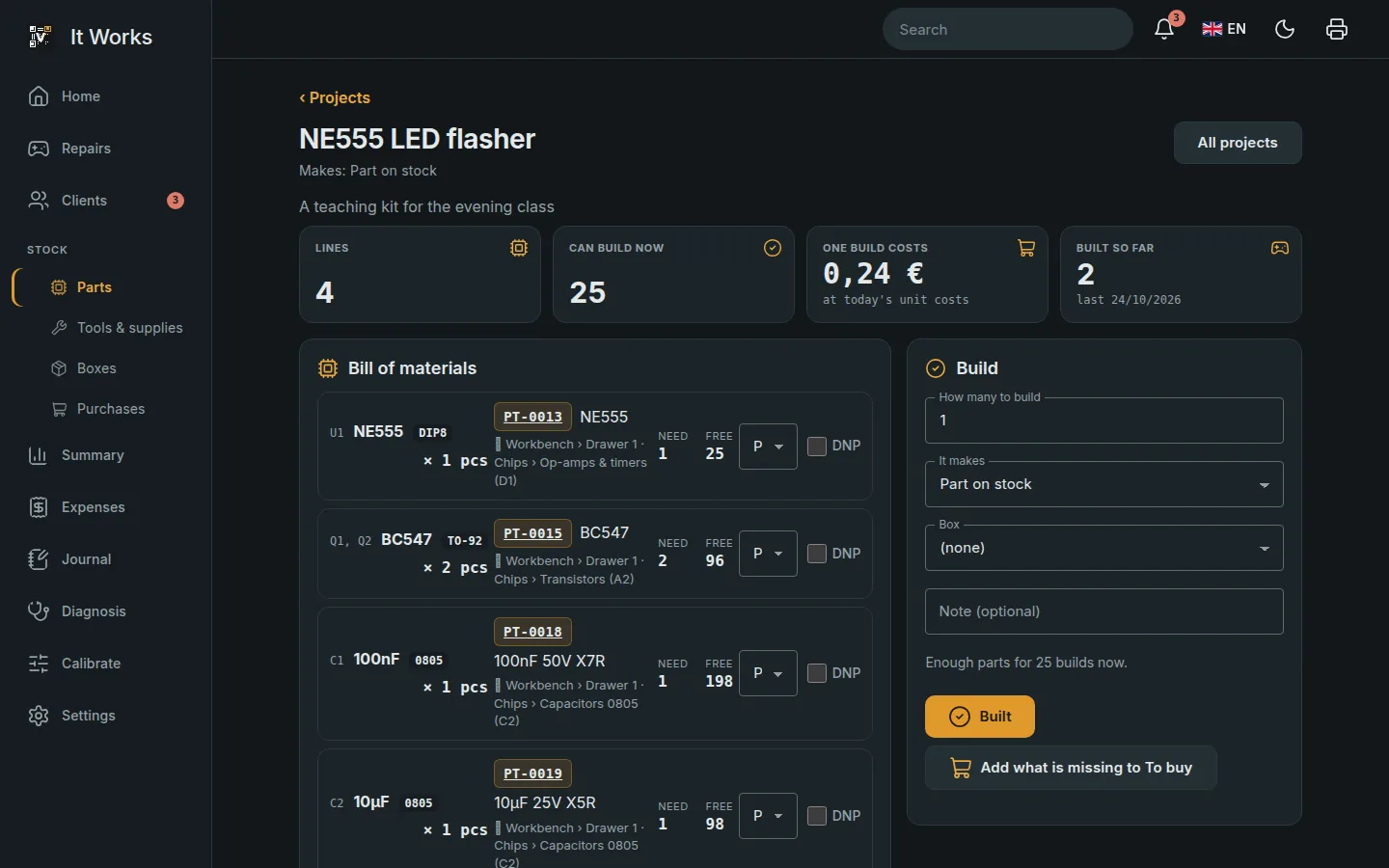
Built
The tiles say how many lines the project has, how many you Can build now, what One build costs at today's unit costs and how many were Built so far. Under Build set How many to build, what It makes and the Box, then press Built. While a line is short the button stays grey and the line under it says why.
- Device: every build becomes your own device (RS-), ready to sell, with the project's name; the parts go onto it as parts used, so its cost basis is exactly what they cost. Category, manufacturer and model come from Project details.
- Part on stock: the builds become one part (PT-) on stock to use later on a device or in another build. Its total is what the parts were worth, to the cent; they leave their lots with a note "Built into PT-…", so your stock value stays the same. Its category and package come from Project details.
Verkly then offers the labels of what was made (Print N labels, On paper or Done).
What is missing goes to To buy
Add what is missing to To buy plans the count in How many to build: what those builds need beyond your free stock appears in To buy on the Diagnosis tab beside the repairs' parts, each row naming the project. Clear the plan takes it out again.
Mark a project's part ordered
A project's row in To buy, and a short line on the project's bill of materials, has Mark ordered. Pick the purchase line the part comes with (or Not in a purchase in Verkly): the row leaves To buy for Ordered and the line says "Ordered on …" with the purchase. When that purchase is marked received, the line takes the part it brought and you get a notification. Not ordered takes the mark back.
Undo a build
Builds lists every build with its day, what it made and its cost. Undo takes a build back while nothing happened to what it made: the devices are deleted and the parts go back on stock, or the part is deleted and its pieces return to their lots. Once a device is sold or got other parts, or the part was used, counted or reserved, Verkly says what to undo first.
Find a project and where a device came from
The Search box finds a project by its name, notes, manufacturer and model and by its bill of materials: a value, a designator or a part number from a line brings up the project under Projects. A kit is found the same way under Kits, by its name, its KT- code or one of its values. A device made by Built says on its card "Built in … on …", and the project's name there opens the project.